 Deutsch
  España
  Francais
  Russian
  Čeština
  Greek
Greek  Romanian
  Arabic
  Português
  Indonesian
  Croatian
  Serbia
  Farsi
Farsi  Hebrew
  Mongolian
  Georgia
  Azerbaijani
  Thai
Thai  Turkish
  Magyar
 What’s new in ASC Timetables version 2027


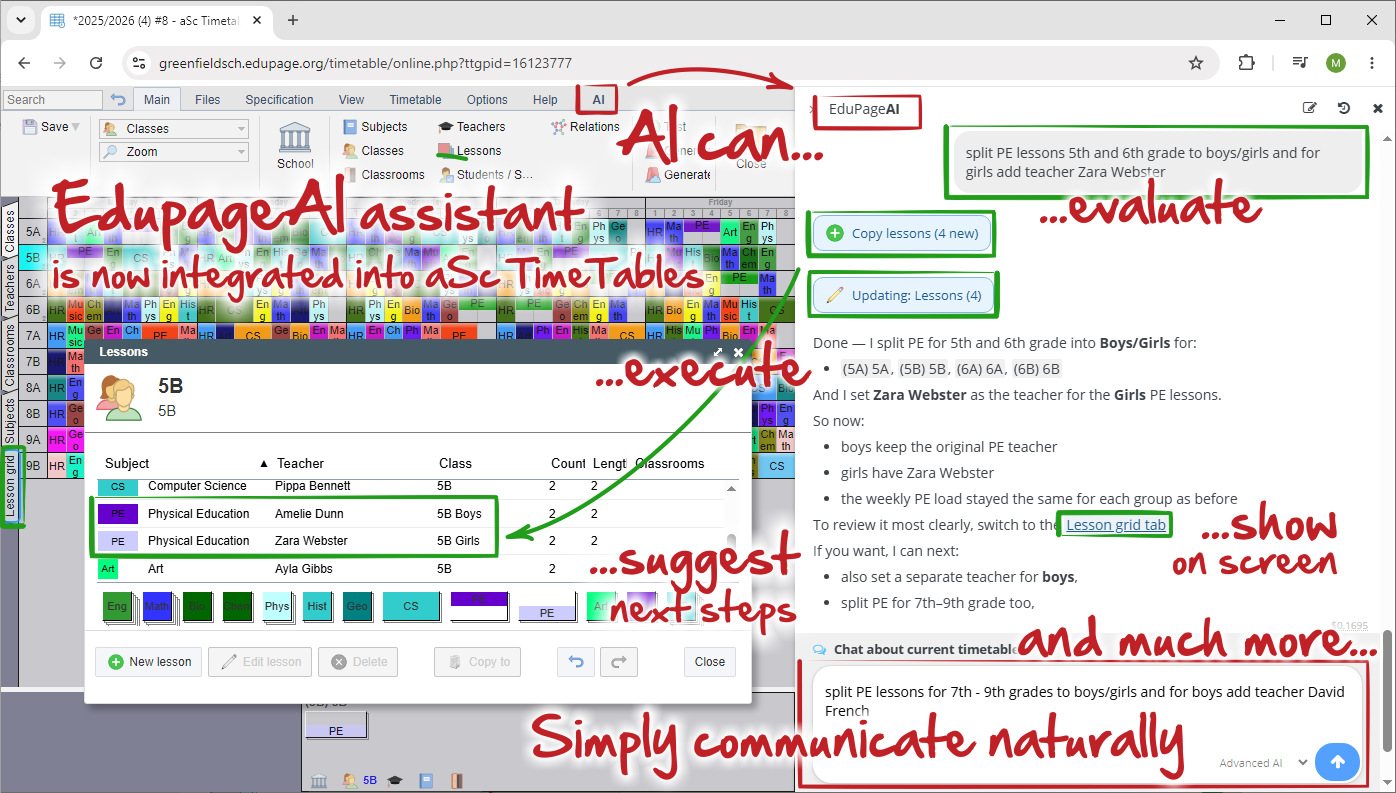
AI integration
The software includes a powerful AI panel where users can communicate naturally and manage their timetable using everyday language. You can simply describe what you want, and the AI understands your intent — whether it is creating new lessons, editing existing ones, or performing bulk changes across the timetable.
The AI can also analyze the timetable itself. It understands timetable validation rules and can explain which conditions or constraints were violated and why. Users can ask questions about conflicts, missing requirements, teacher availability, room usage, or scheduling rules in a conversational way.
Beyond answering questions, the AI can actively work with the timetable. It can:
- add new lessons,
- modify existing lessons,
- perform mass updates and bulk edits,
- rename or move lessons,
- adjust schedules based on requested conditions,
- help resolve timetable conflicts automatically.
This feature is currently available only in selected regions, with rollout to additional regions planned soon.
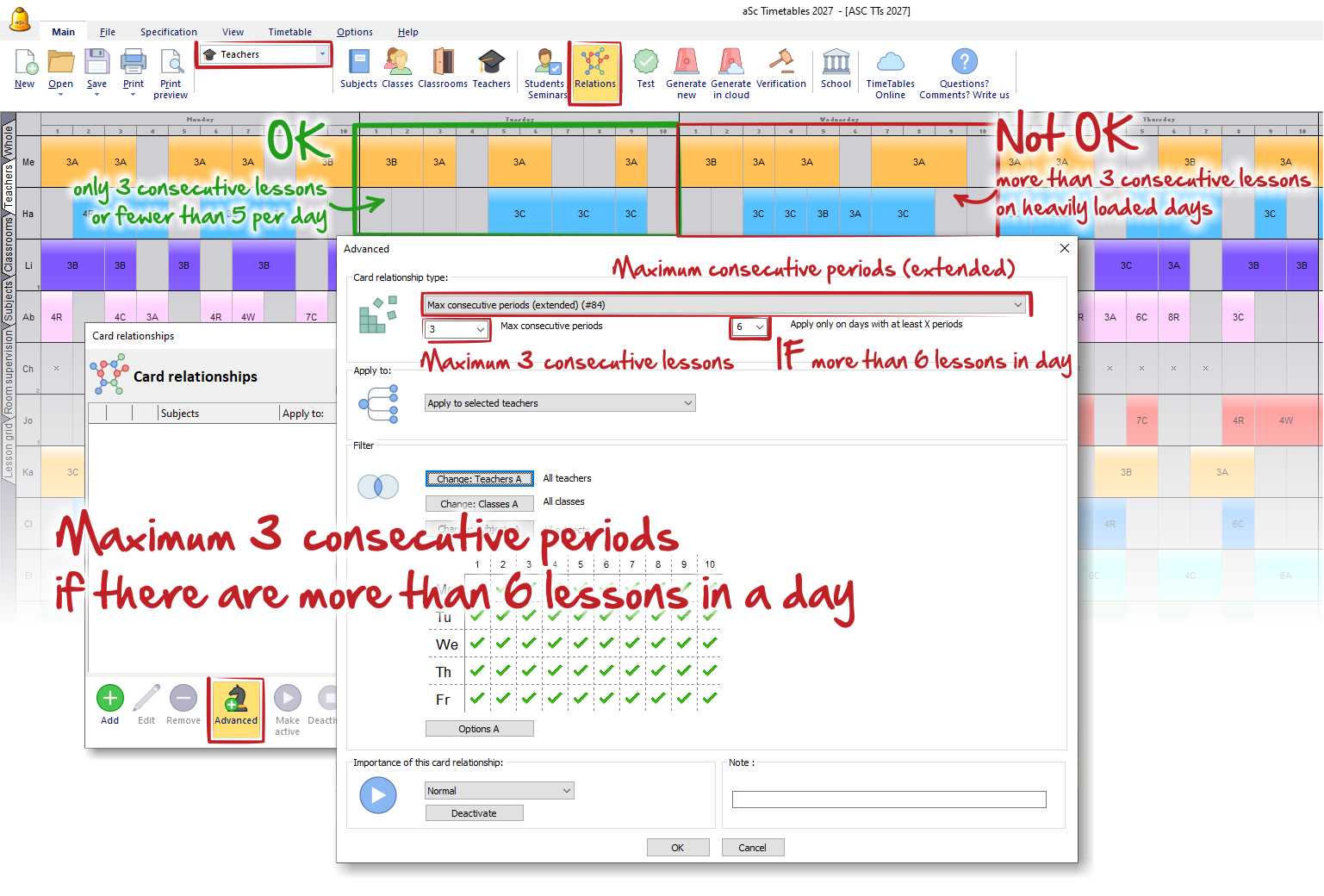
New card relationship - "Max consecutive periods per day (extended)" (#84)
This constraint extends timetable optimization options by allowing the maximum number of consecutive lessons to be enforced only when the daily lesson count exceeds a specified threshold (the second parameter).
For example, if you set a maximum of 3 consecutive lessons and a threshold of 6 lessons per day, the program will enforce this limit only on days when a teacher has more than 6 lessons scheduled. Days with fewer lessons will be ignored for this constraint.
This allows the timetable to remain compact on lighter days while creating breaks (gaps) primarily on heavily loaded days.
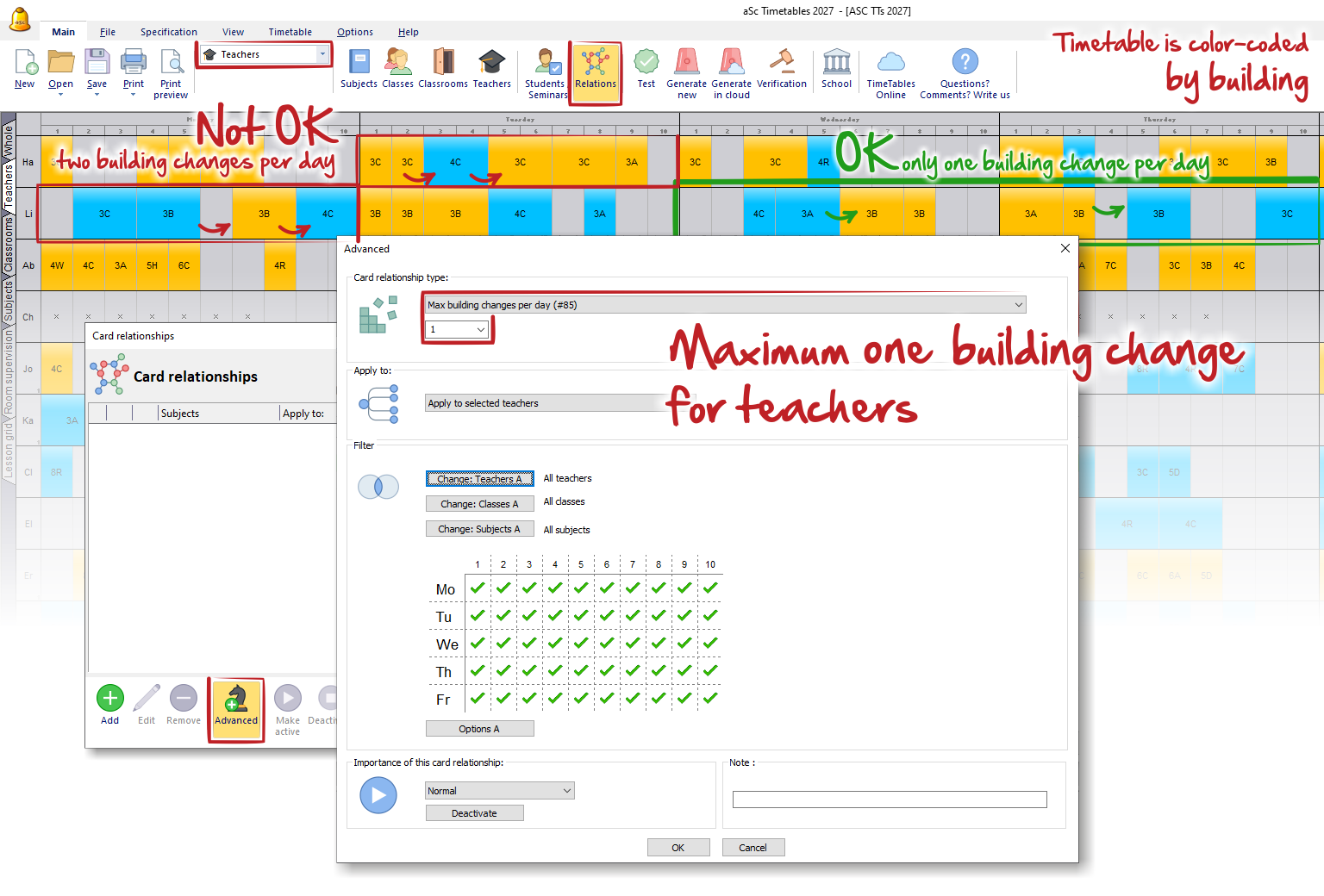
New card relationship - "Max buildings changes per day" (#85)
This setting limits the number of times a class or teacher can move between buildings during a single day.
It is particularly useful in schools with multiple buildings or campuses, where frequent transfers can be time-consuming and inconvenient. By reducing the number of building changes, the timetable becomes more comfortable for both teachers and students and provides more time for moving between lessons.
For example, if you set the limit to 1, the program will try to arrange the timetable so that a class or teacher changes buildings at most once during the day.
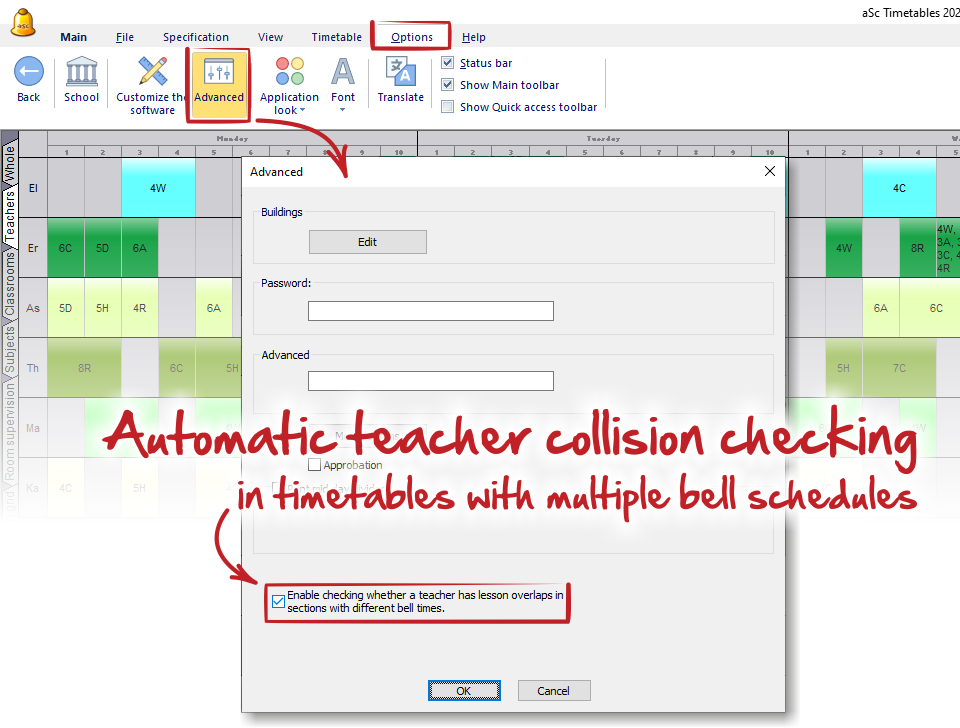
Multibells timetables - automatic teacher's collision checking
This feature helps detect scheduling conflicts in schools that use multiple bell schedules.
When a teacher teaches classes assigned to different bell schedules, lesson periods may overlap in real time even though they appear to occupy different timetable positions. When enabled, the program automatically evaluates the actual start and end times of lessons according to the configured bell schedules and warns about any overlapping lessons assigned to the same teacher.
This helps prevent situations where a teacher is scheduled to teach multiple lessons at the same time.
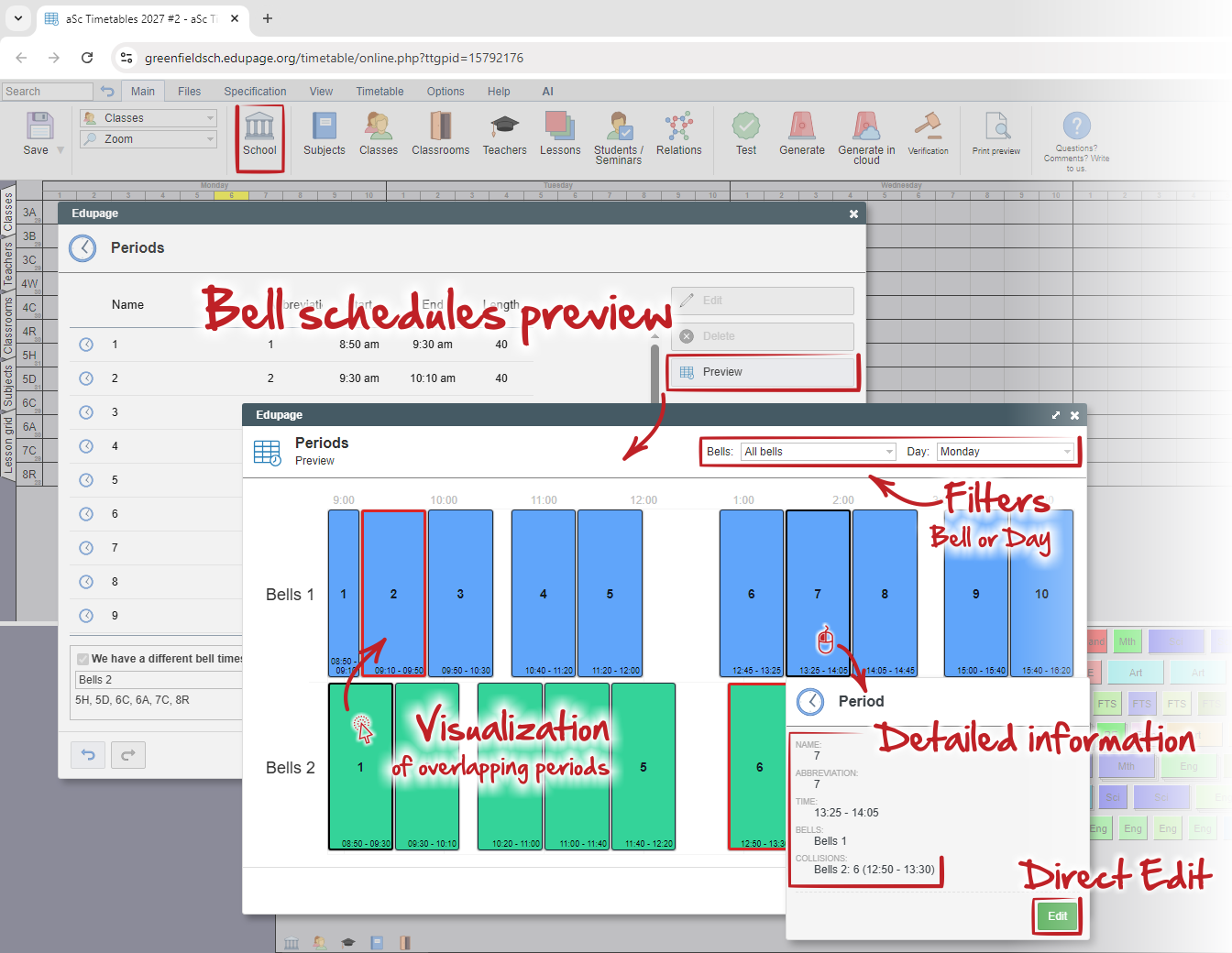
TT online - The Bell Schedule Preview Window
The new feature provides a graphical overview of all bell schedules defined in the timetable, including their actual periods time intervals.
You can switch between individual bell schedules or display all schedules simultaneously. The view can also be filtered by specific days or configured to display the entire week.
Each period is displayed according to its real start and end time. When hovering over a period, the system immediately evaluates and highlights any overlapping periods, making conflict analysis significantly easier in timetables that use multiple bell schedules.
Selecting a period opens a detailed information panel where the period can be reviewed, analyzed, and edited directly. This allows users to investigate conflicts and make adjustments without switching to another timetable view.
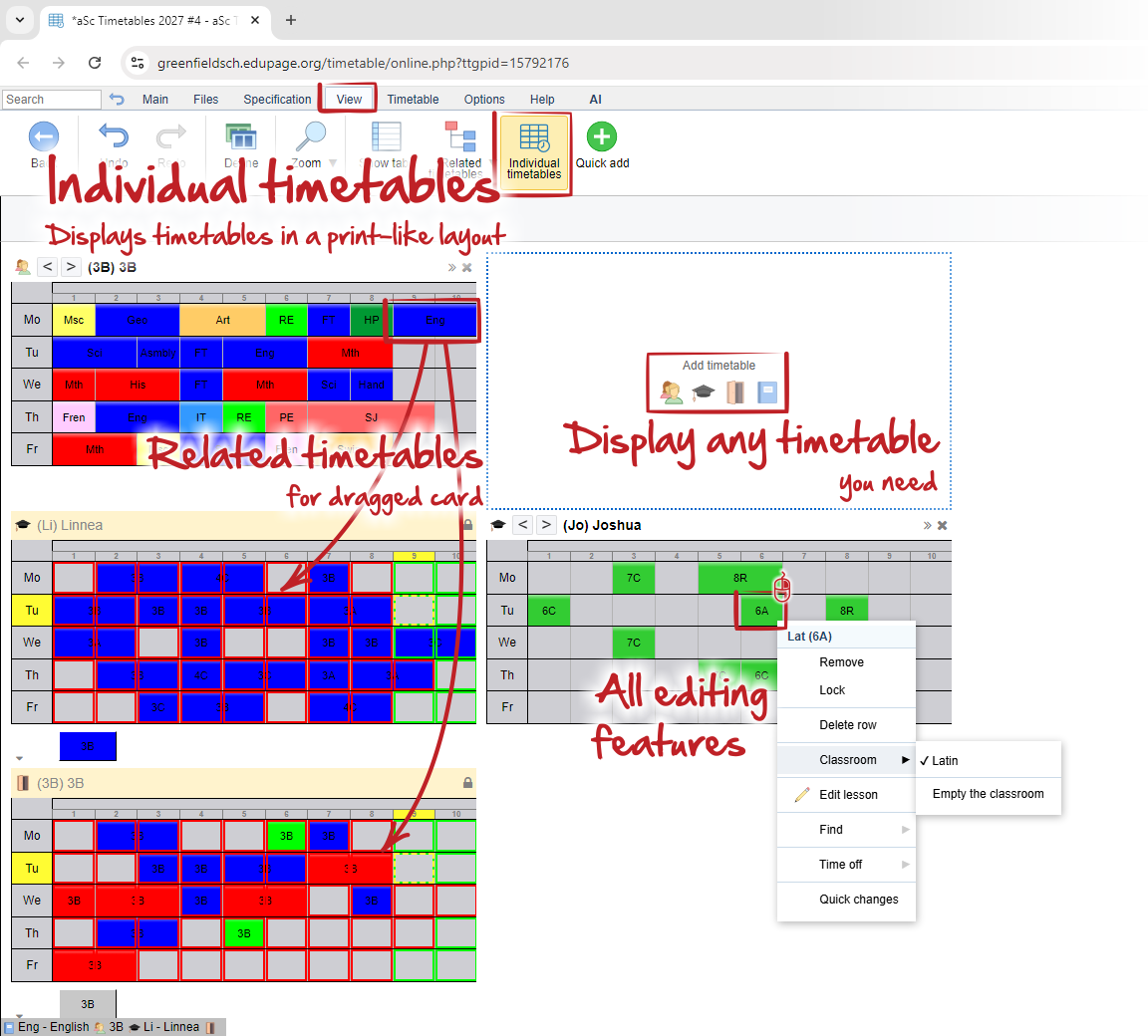
TT online - new view "Individual timetables"
This special view is designed to simplify manual timetable adjustments. For example for lower grades in primary school, it may be easier to swap painting and drawing lesson then to input constraint.
Instead of displaying all classes, teachers, or classrooms in a large shared grid, each timetable is shown separately in a compact format that closely resembles its printed version. This makes it easier to review schedules from the perspective of a specific class, teacher, classroom, or student and quickly identify areas that may require additional changes.
All editing features available in the standard timetable views are also available here. Lessons can be moved, swapped, copied, or modified in the same way as in the regular timetable editor, while all timetable constraints and conflict checks continue to be applied.
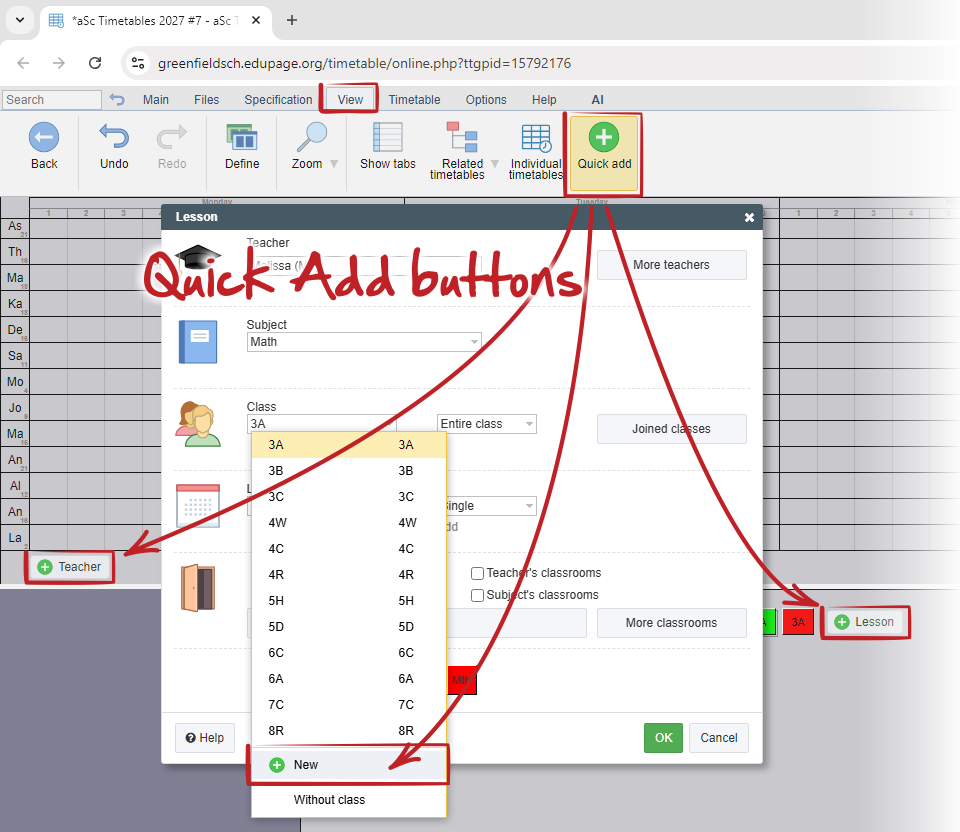
TT online - Quick add functions
When this option is enabled, a small Quick Add button is displayed under the lists of classes, teachers, subjects, classrooms, and other timetable objects.
This feature is particularly useful when creating lessons or editing timetable data. If you discover that a required object is missing, you do not need to close the current window and interrupt your work. Instead, you can create the missing object directly from the current screen and immediately continue with the task you were working on.
This significantly speeds up data entry and makes timetable creation more convenient by reducing unnecessary navigation between windows.
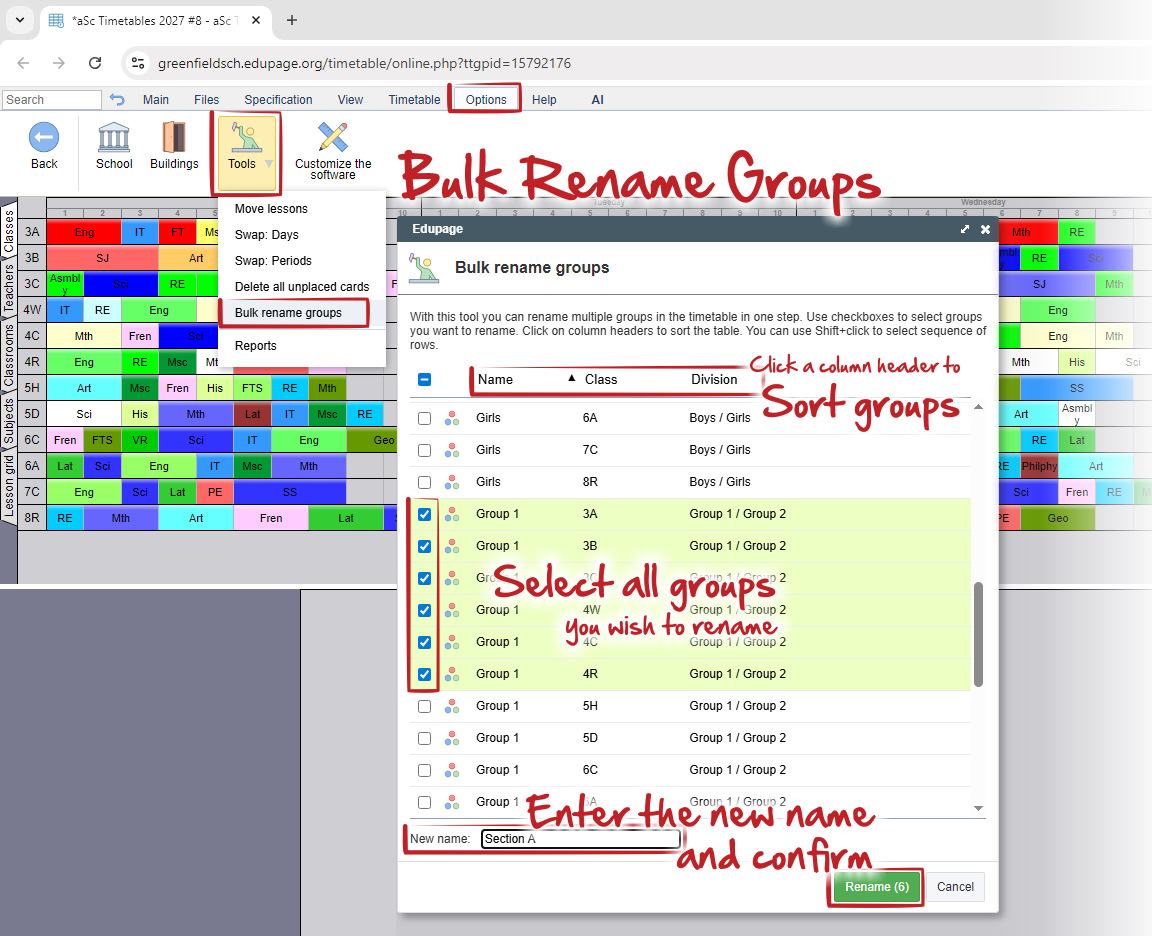
TT online - Bulk renaming groups feature
This tool allows you to rename multiple groups from different classes in a single operation.
It is especially useful when importing data or updating naming conventions across the entire timetable, eliminating the need to edit each group individually.
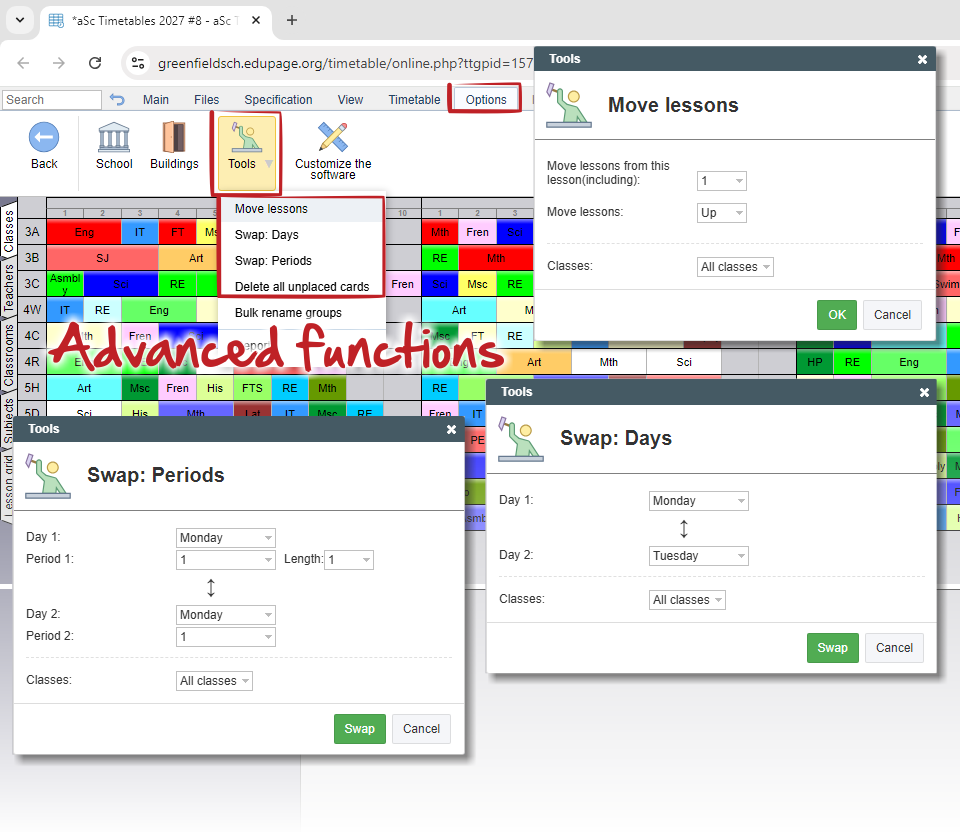
TT online - Advanced functions
The Options → Tools menu now includes several advanced timetable editing functions previously available only in the desktop version.
These functions include Swap Days, Move Lessons, Swap Periods, and Delete Unplaced Cards. They can be used to perform larger timetable modifications quickly and efficiently without manually editing individual lessons.
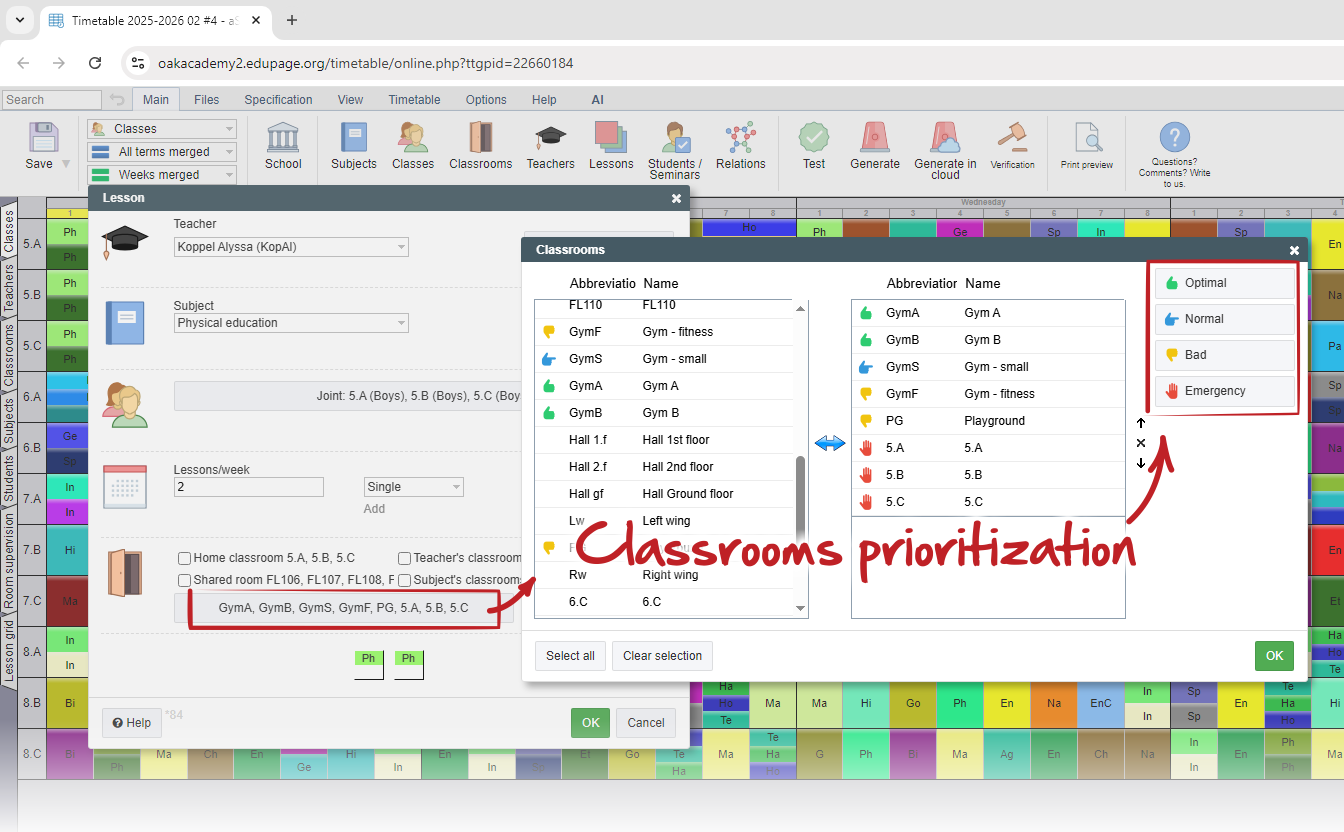
TT online - Classrooms prioritization
For every classroom assigned to a lesson, you can specify its priority level: Optimal, Normal, Bad, or Emergency, just like in the desktop version.
The timetable generator will prefer higher-priority classrooms whenever possible, while still using lower-priority alternatives when required to find a valid solution. This gives you greater control over classroom allocation and timetable quality.
See also: What's new in Online substitutions