
 Francais
  Čeština
  Romanian
  Indonesian
  Croatian
  Serbia
  Farsi
Farsi  Georgia
  Azerbaijani
  Thai
Thai  Turkish
  Magyar
 Time-off


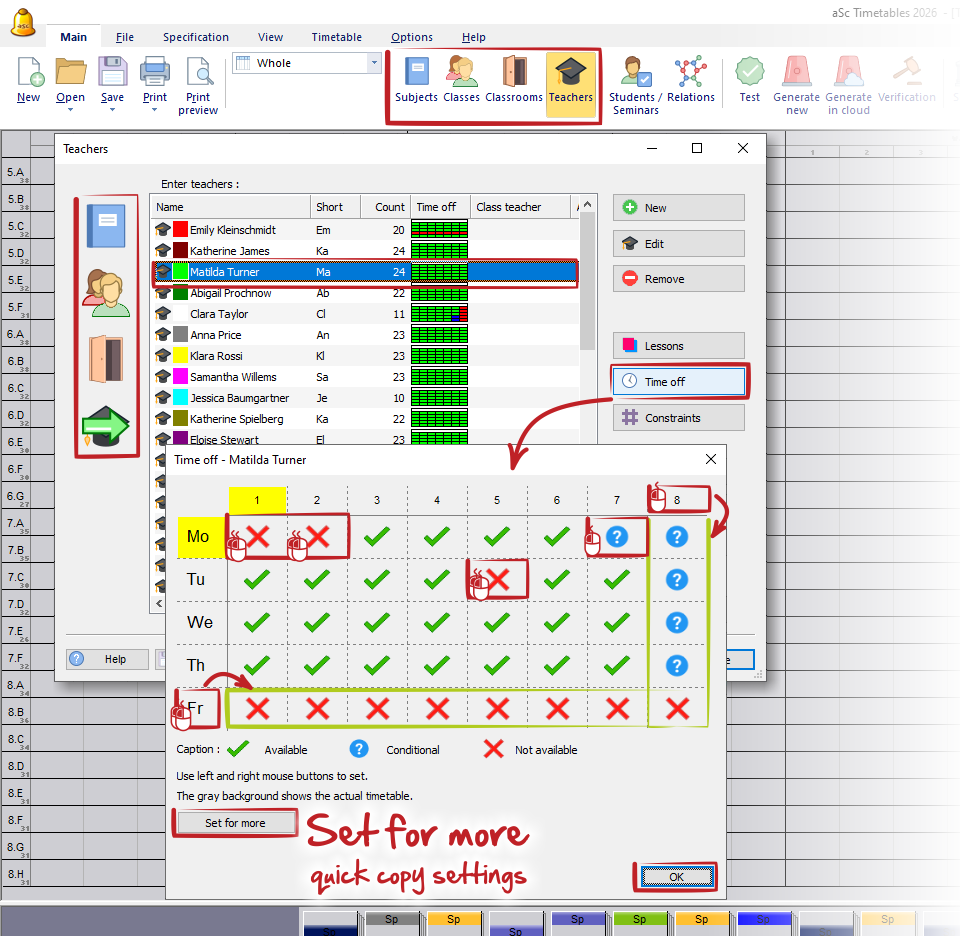
For each created object (class, teacher, subject, classroom, or student), you can specify exactly when a lesson can or cannot be scheduled. Select the object from the list (e.g. a teacher) and click the "Time Off" icon.
In the dialog window, you can mark fixed timetable positions where a lesson for the selected object:
Can be scheduled – green check mark
Cannot be scheduled – red cross
Can be scheduled if necessary – blue circle with a question mark
Simply click the cells with the left or right mouse button to change their status.
Note:
- Keep in mind that a lesson can only be scheduled in a time slot that is available for all objects involved in the lesson. If even one of them has the position blocked, the lesson cannot be scheduled in that time slot.
- Use Time Off only for cases where blocked positions are fixed and cannot change. If you only need to limit the number of teaching days or periods, or define a lunch break, use relations and constraints instead. This gives the timetable generator more flexibility and more options when scheduling lessons.
- Be especially careful when blocking entire days (for teachers or classes). If too many days are blocked, the program may not be able to satisfy the ideal distribution of subject cards. For example, if there are five Mathematics lessons per week but the teacher has two days blocked, it is impossible to distribute those lessons across five different days.
See also:
Class time off
How to set teacher's timeoff
How to specify that we cannot use classroom at certain times?