Deutsch
  España
  Francais
  Polish
  Russian
  Čeština
  Greek
Greek  Lithuania
  Romanian
  Arabic
  Português
  Indonesian
  Croatian
  Serbia
  Farsi
Farsi  Hebrew
  Mongolian
  Bulgarian
  Georgia
  Azerbaijani
  Thai
Thai  Turkish
  Magyar
 Textbook Storage Administration - Quick overview


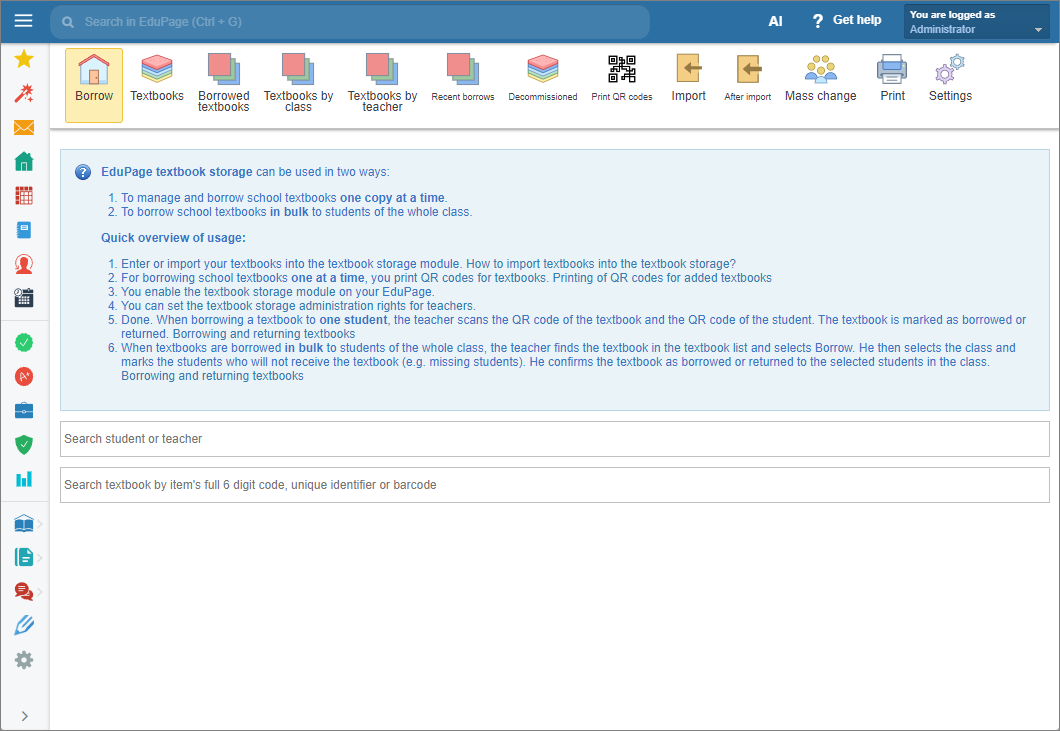
To perform the desired operation, as the Textbook storage administrator, select the appropriate tab from the main menu of the Textbook storage module.
In the “Borrow” tab, you can search for the borrowed items by borrower or by the item’s 6-digit code.
Using the mobile application, users with the appropriate permissions, can scan the item’s QR code or barcode as well as the borrower’s QR code, to lend or return a textbook. You will also find notifications and warnings in this tab.
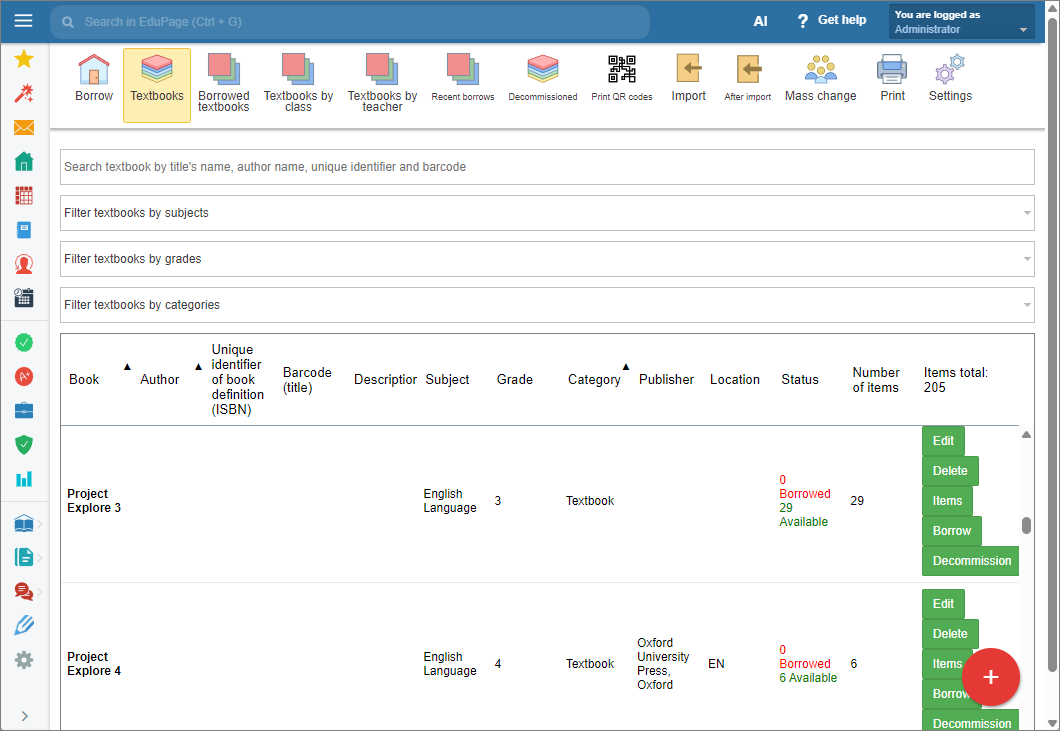
In the “Textbooks” tab, you can view, add, edit, lend, decommission, and delete titles and their items. To edit items, select the “Items” tab for the desired title.
How to add a new book title to the Library/Textbook storage module
How to add another item to an already existing title?
How to filter by subject, grade or category.
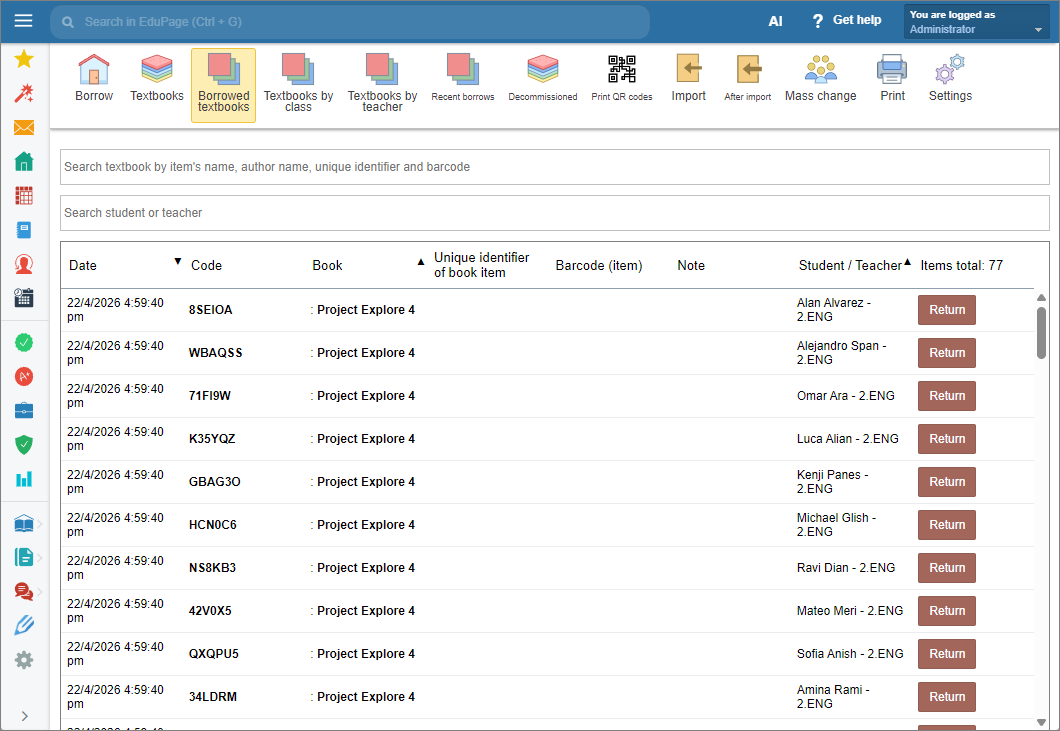
In the “Borrowed textbooks” tab, you can view borrowed textbooks, the borrowing date and borrower. You can search by borrower, title, author, items’s unique identifier or barcode, and also return items.
In the mobile application, users can view their borrowed textbooks.
How to assign administrator rights to the Textbook storage?
How to assign borrow/return textbooks rights to the Textbook storage?
Enable teachers to borrow textbooks for themselves and for their students.
Enable teachers to borrow textbooks for themselves.
In the “Textbooks by class” tab you can view textbooks borrowed by class and return them in bulk. You can “Group by title” if necessary.
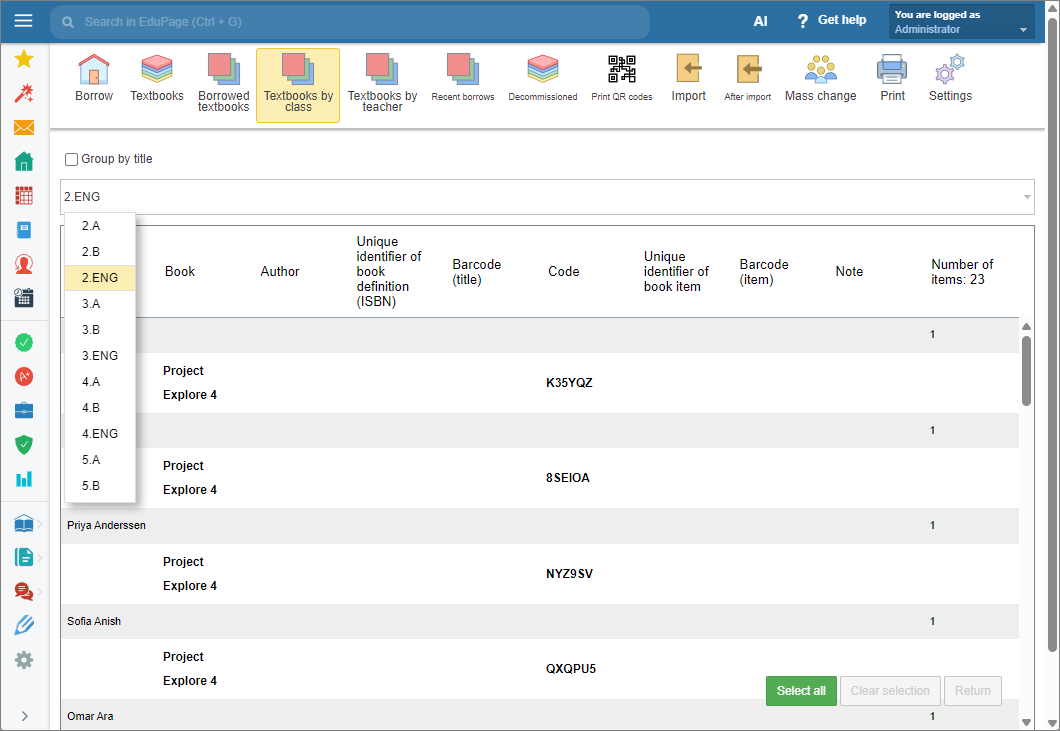
Bulk textbooks borrowing without QR scanning.
Bulk textbook returns without QR scanning.
In the “Textbooks by teacher” tab, you can view textbooks borrowed by teachers and return them in bulk. You can “Group by title” if necessary.
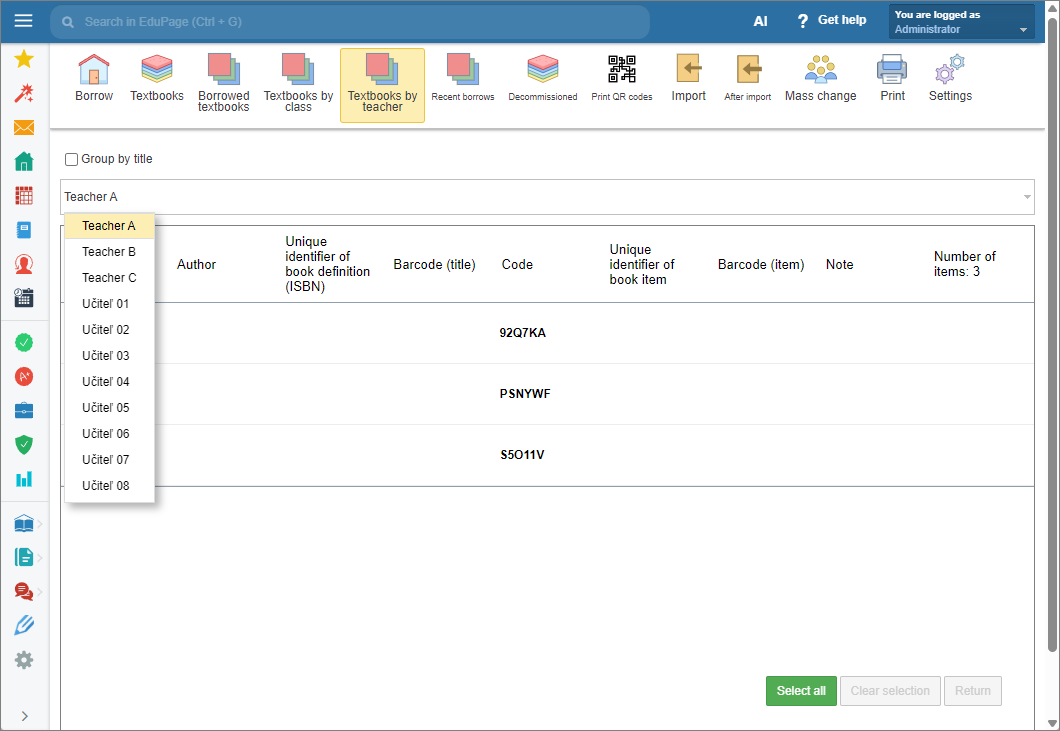
Bulk textbooks borrowing without QR scanning.
Bulk textbook returns without QR scanning.
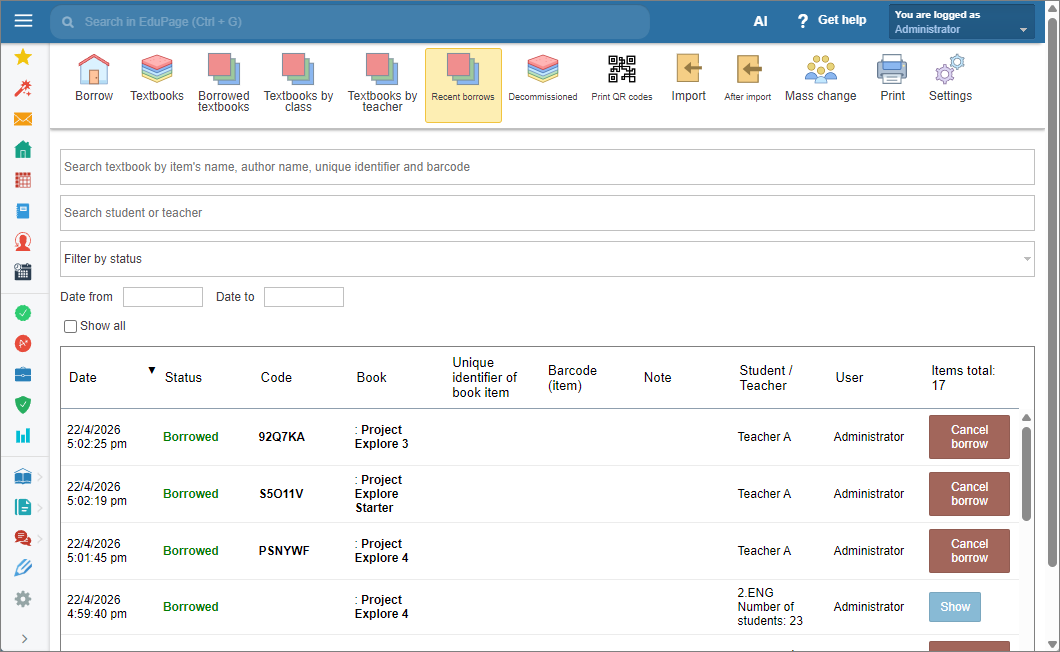
In the “Recent borrows” tab, you can view borrowing history and correct any incorrectly recorded entries. Use search and filter tools simultaneously. Check the “Show all” checkbox to expand bulk borrowings in the list.
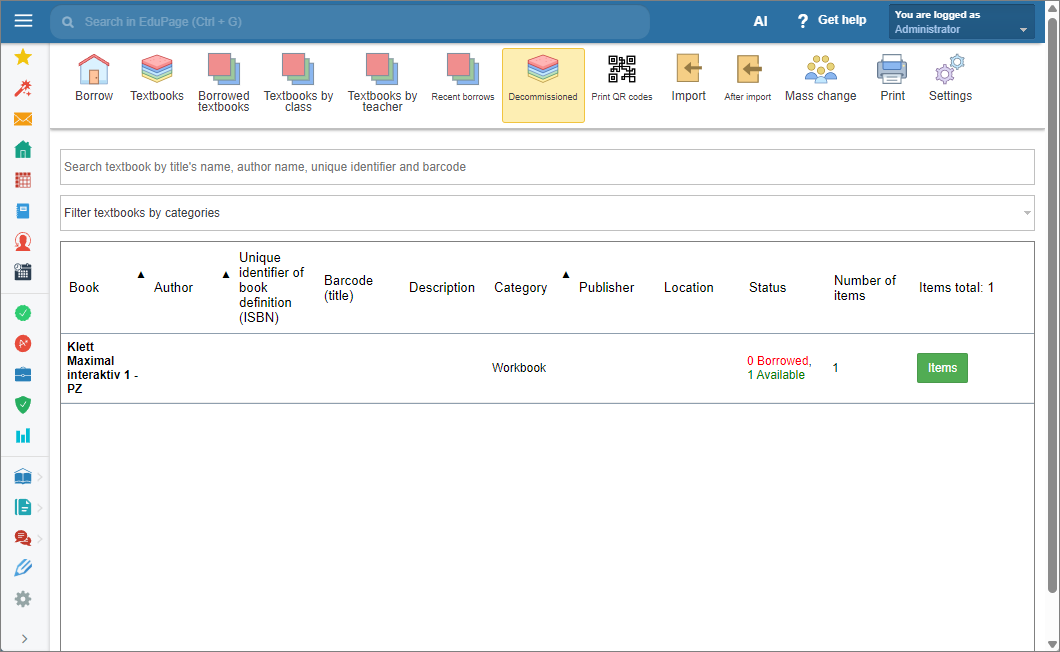
In the “Decommissioned” tab you can view decommissioned textbooks. To restore a textbook, remove the decommission date in the “Item” > “Edit” window.
Use the selected criteria to search the list.
To print the list, select “Withdrawal list” in the “Print” tab.
How to print a withdrawal list.
In the “Print QR codes” tab, you can print QR code labels that enable textbook lending and returns by scanning the code.
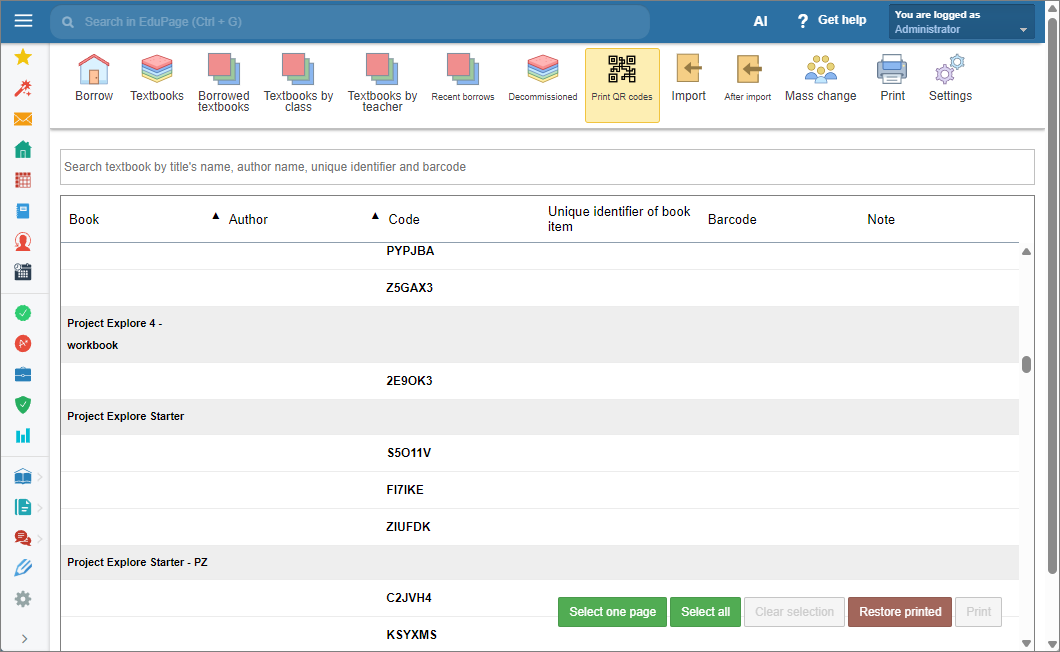
How to print QR codes for added books?
How to set a different label format for printing QR codes?
Use the “Import” tab to import external data into your Textbook storage.
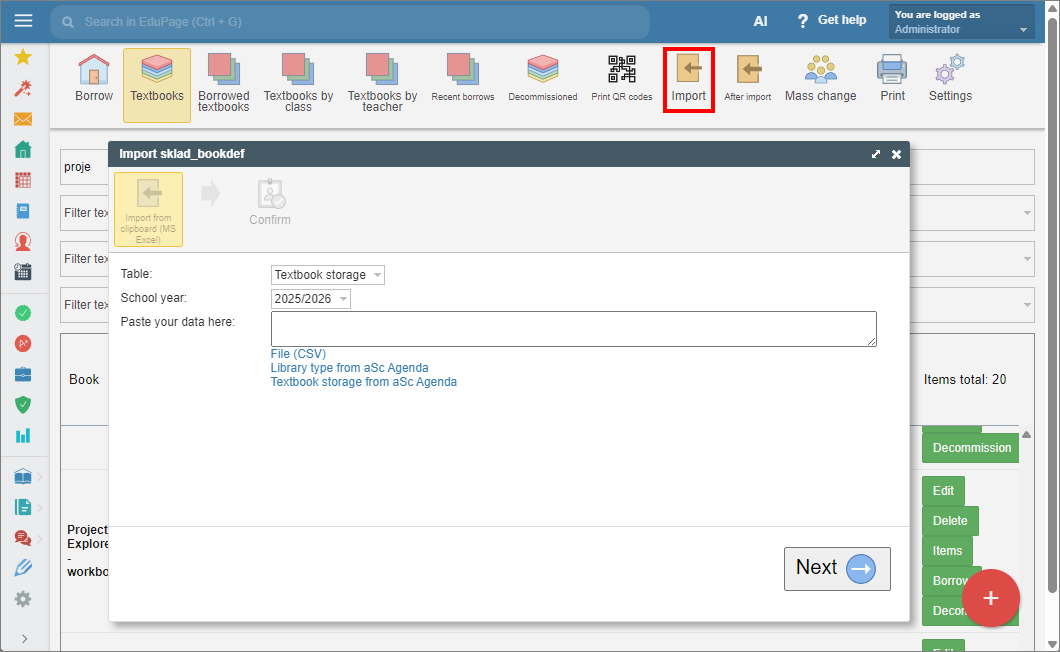
How to import books into the library / textbook storage?
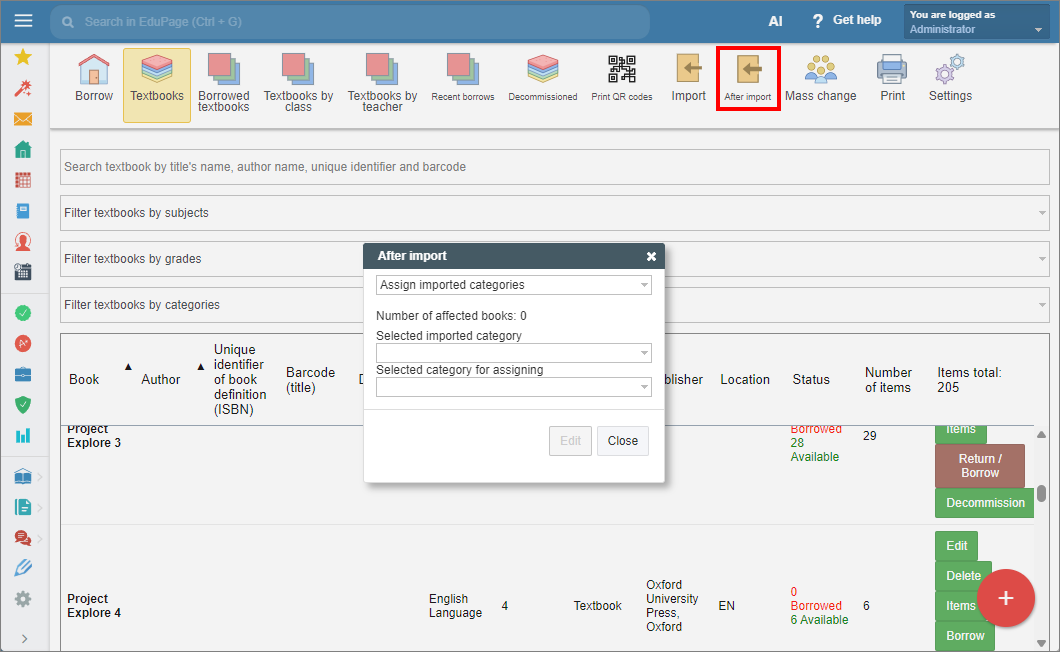
Only predefined categories can be assigned to the imported titles. In the “After import” tab, you can assign these categories to titles grouped under categories not recognized by the module.
In the “Mass change” tab, you can bulk-edit the item or title properties.
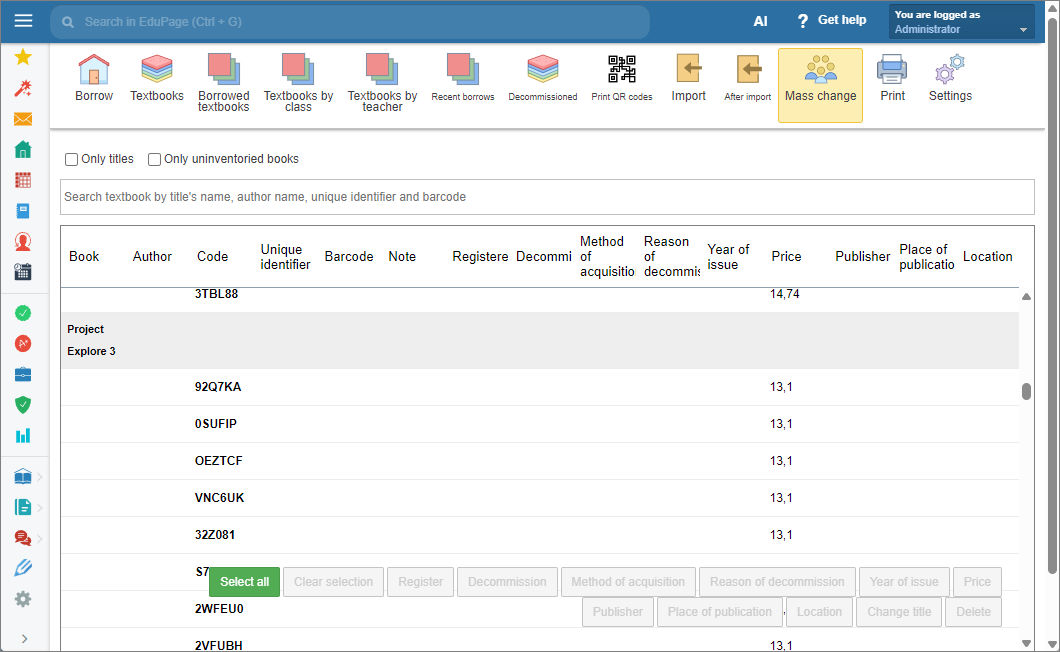
Mass change in the Library/Textbook storage module
Go to the “Print” tab to print your Accession register, Withdrawal list, Records, or Inventory.
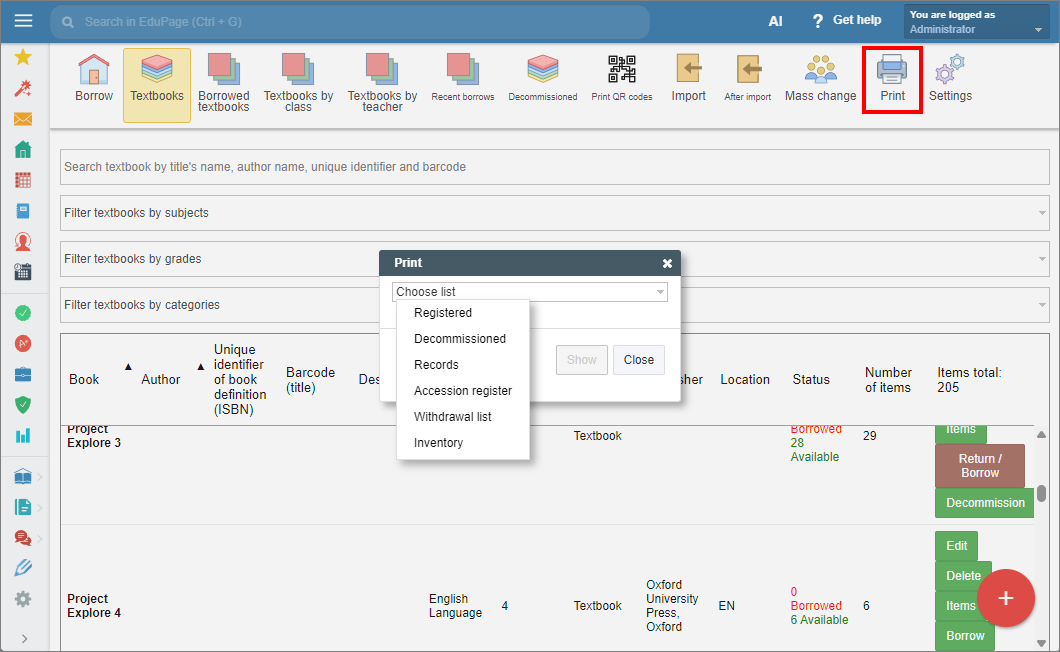
How to print an accession register.
How to print a withdrawal list.
How to print library / textbook storage book records.
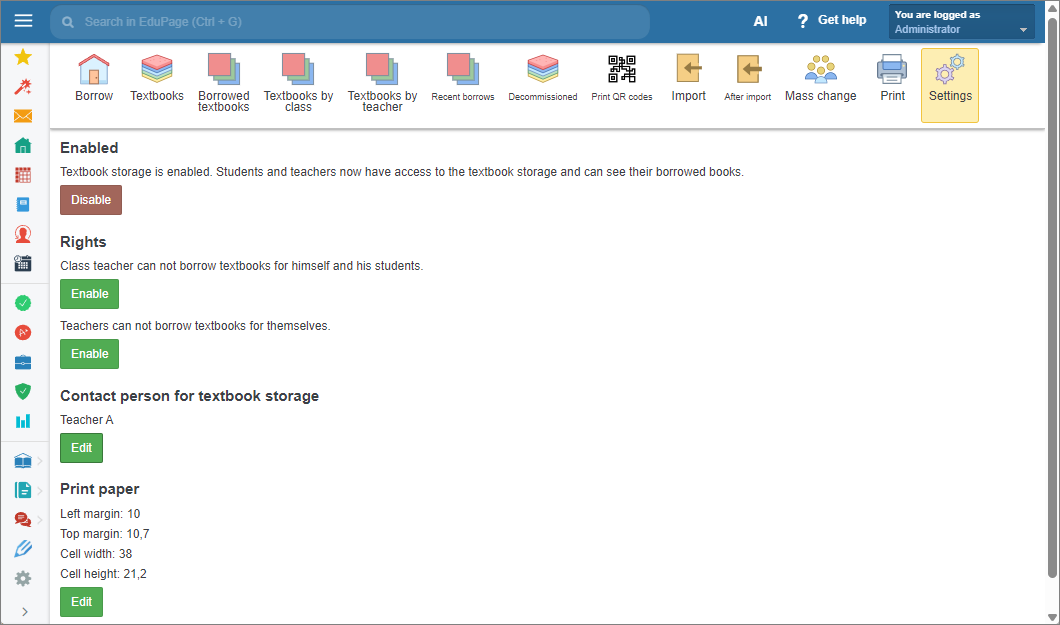
In the “Settings” tab, you can enable or disable access to the Textbook storage module, allow teachers to borrow textbooks for their students and/or for themselves, set the Textbook storage contact person, set the print size of QR-code labels.