 Deutsch
  España
  Francais
  Polish
  Russian
  Čeština
  Greek
Greek  Lithuania
  Romanian
  Arabic
  Português
  Indonesian
  Croatian
  Serbia
  Farsi
Farsi  Hebrew
  Mongolian
  Bulgarian
  Georgia
  Azerbaijani
  Thai
Thai  Turkish
  Magyar
 Mass change in the Library/Textbook storage module


In the “Mass change” tab you can bulk edit title and item parameters.
If you prefer to change item or title parameters individually, use the “Books” or “Textbooks” tab.
Find the desired title by entering its name, author, or the book identification number.
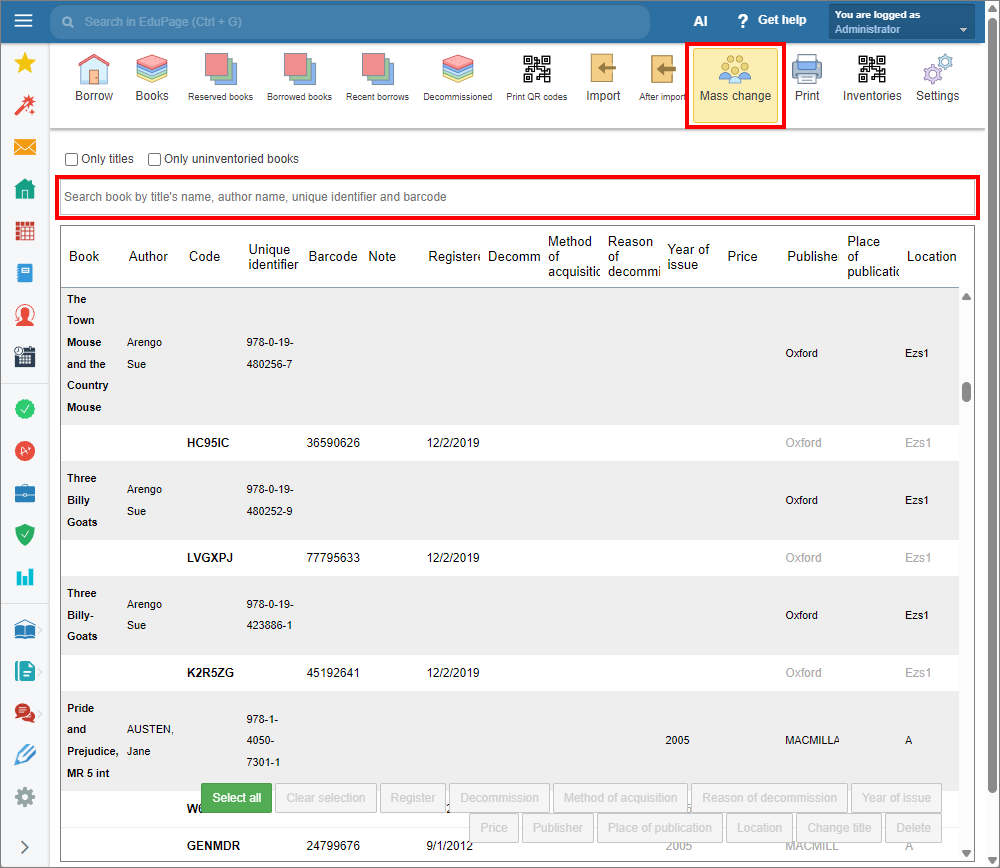
Select item by clicking the row of the item. The selected row highlights in green.
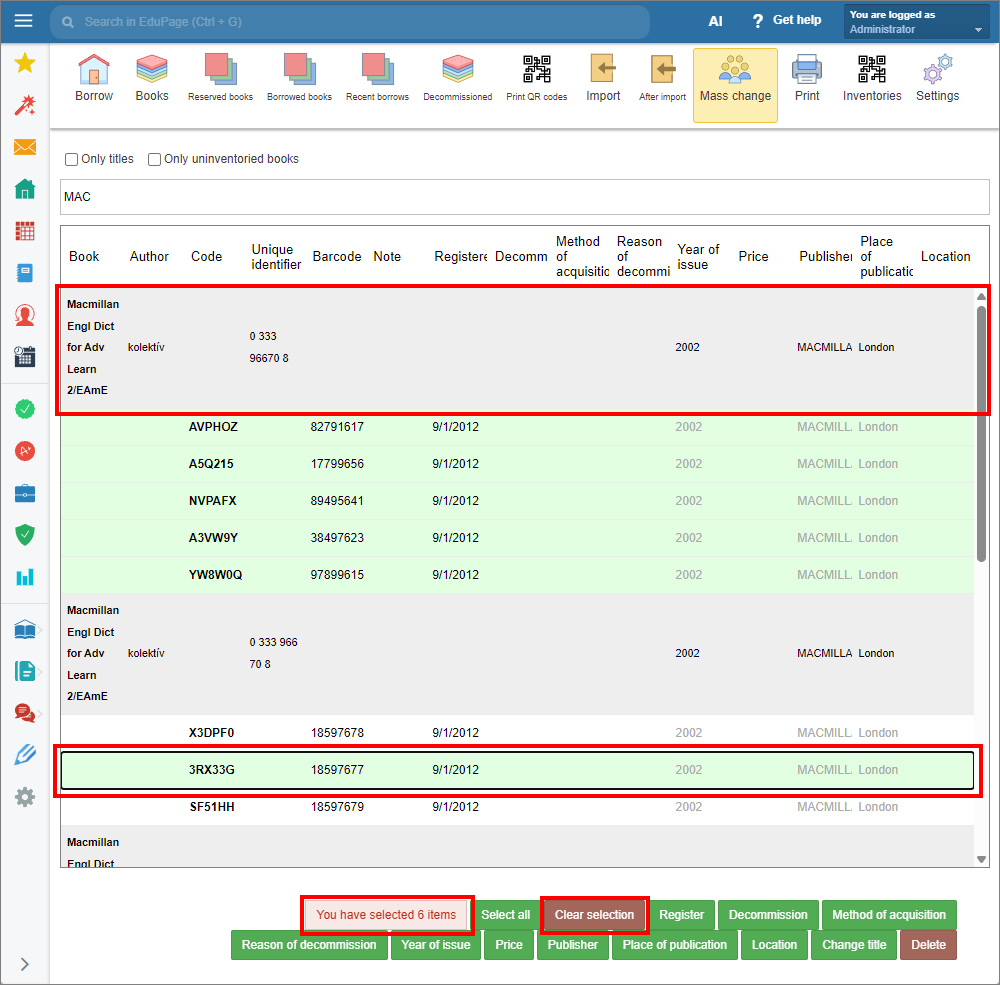
To select all copies of a title, click the grey row for the desired title. The “Only titles” checkbox must be unchecked.
To select multiple items, click another item or use the Shift key.
To select all items, click the “Select all” button. All items will be selected - including those not currently displayed.
To deselect the item, click the row again. To deselect all items, click the “Clear selection” button.
Note: You do not need to hold down the Ctrl key to select multiple items. New selections are added to the existing selection by default, even if previously selected items are not currently visible on the screen. To avoid accidental selections, use the “Clear selection” option when needed.
To improve the selected items control, the number of selected items is now displayed whenever a selection is made.
If you have any inventory records, you can use the feature “Only uninventoried books”. Only books that are not included in any inventory record will be displayed.
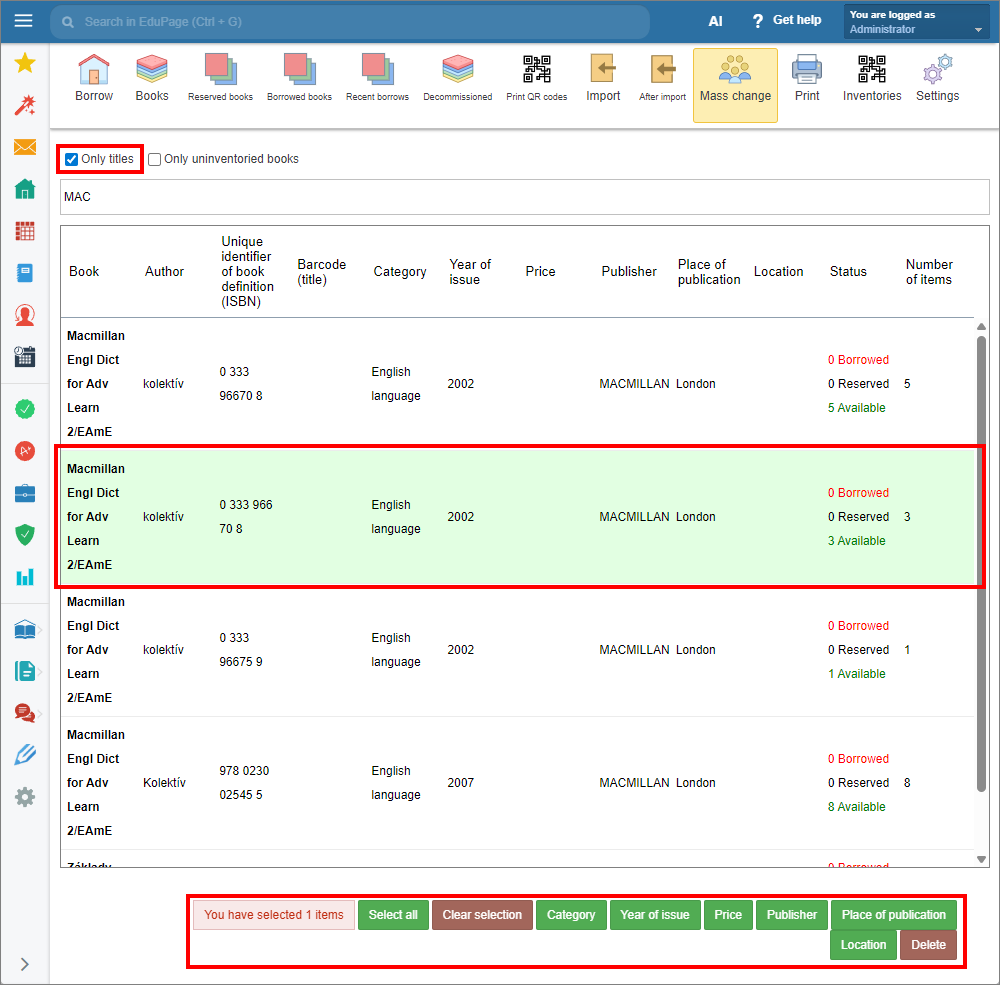
To edit titles, check the “Only titles” checkbox. Bulk title editing buttons appear at the bottom of the screen. Select the titles and the parameter to edit. The edited parameter applies to all items of the title, except those edited individually.
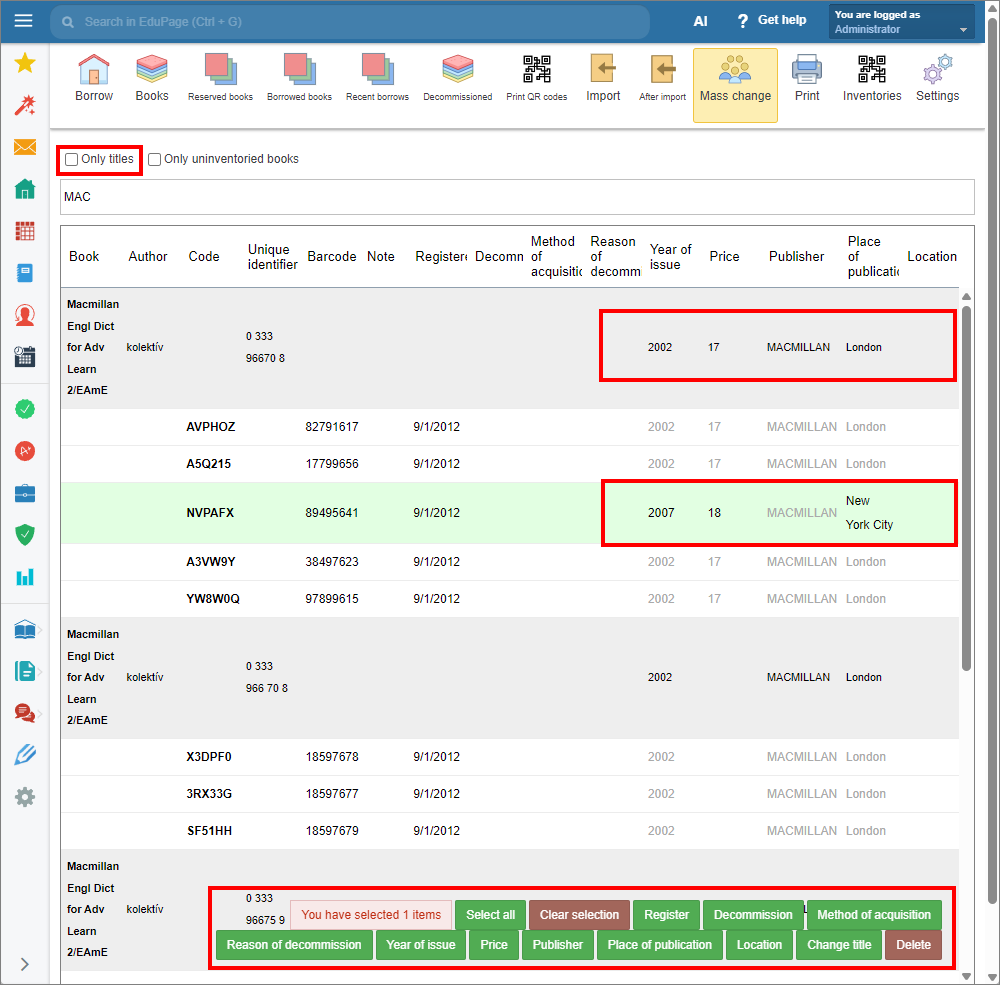
To edit items, uncheck the “Only titles” checkbox. Bulk items editing buttons appear at the bottom of the screen. Select the items and the parameter to edit. Title parameters linked to items appear in black in the grey title row, and in grey in each item row. Parameters edited individually for an item (not linked to the title) appear in black.
Select the parameter you want to change.
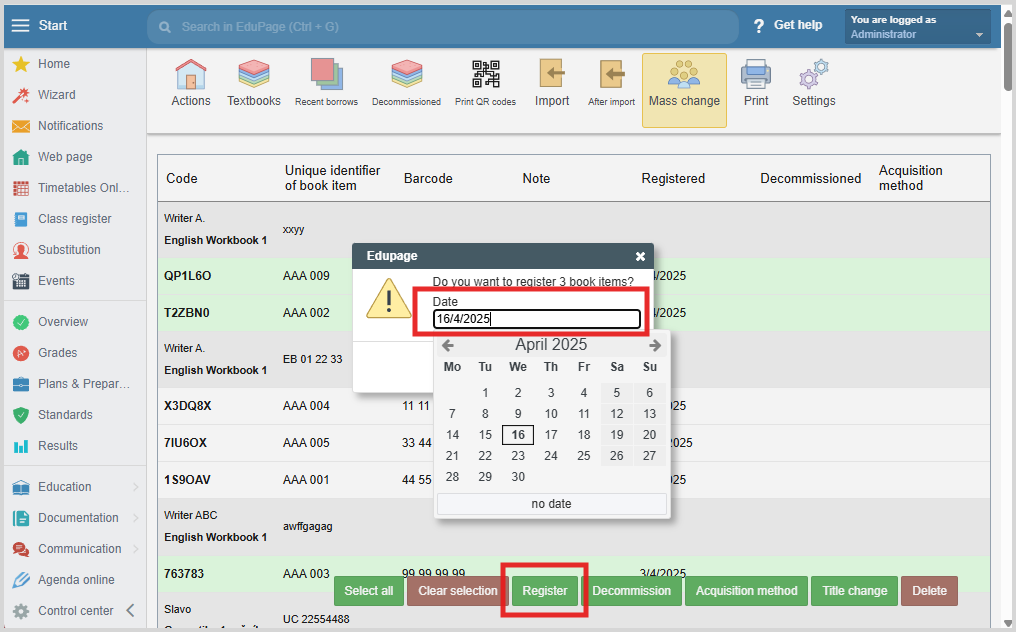
By pressing the Register or Decommission tab, a date window showing the current date will appear. Press the “Date” field to display the date selection window. Choose and confirm the desired date.
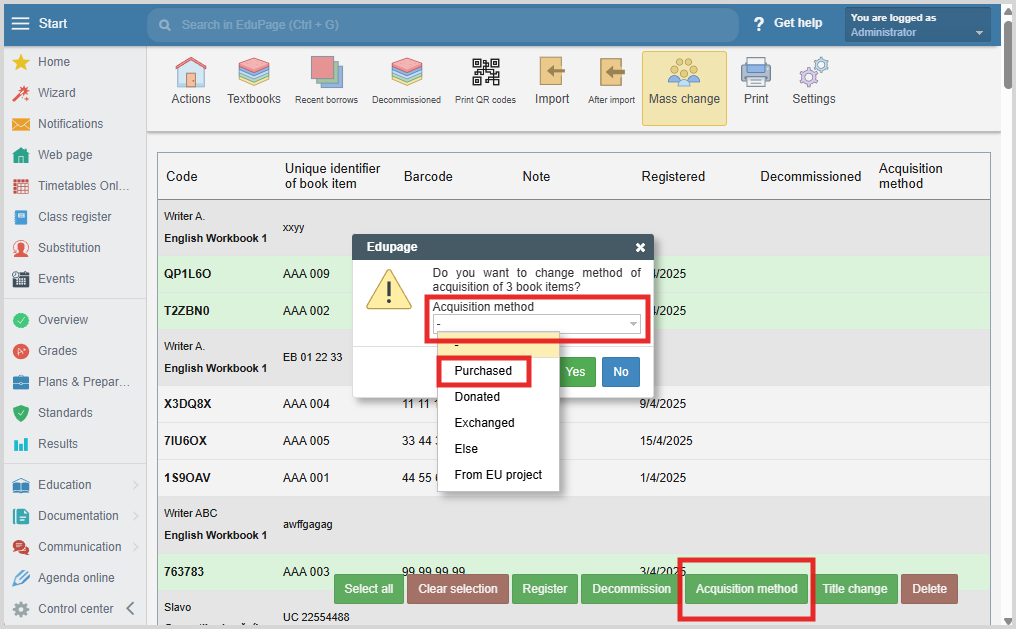
If you want to change the Acquisition method, select the appropriate acquisition method from the Acquisition method dropdown menu. Confirm selection.
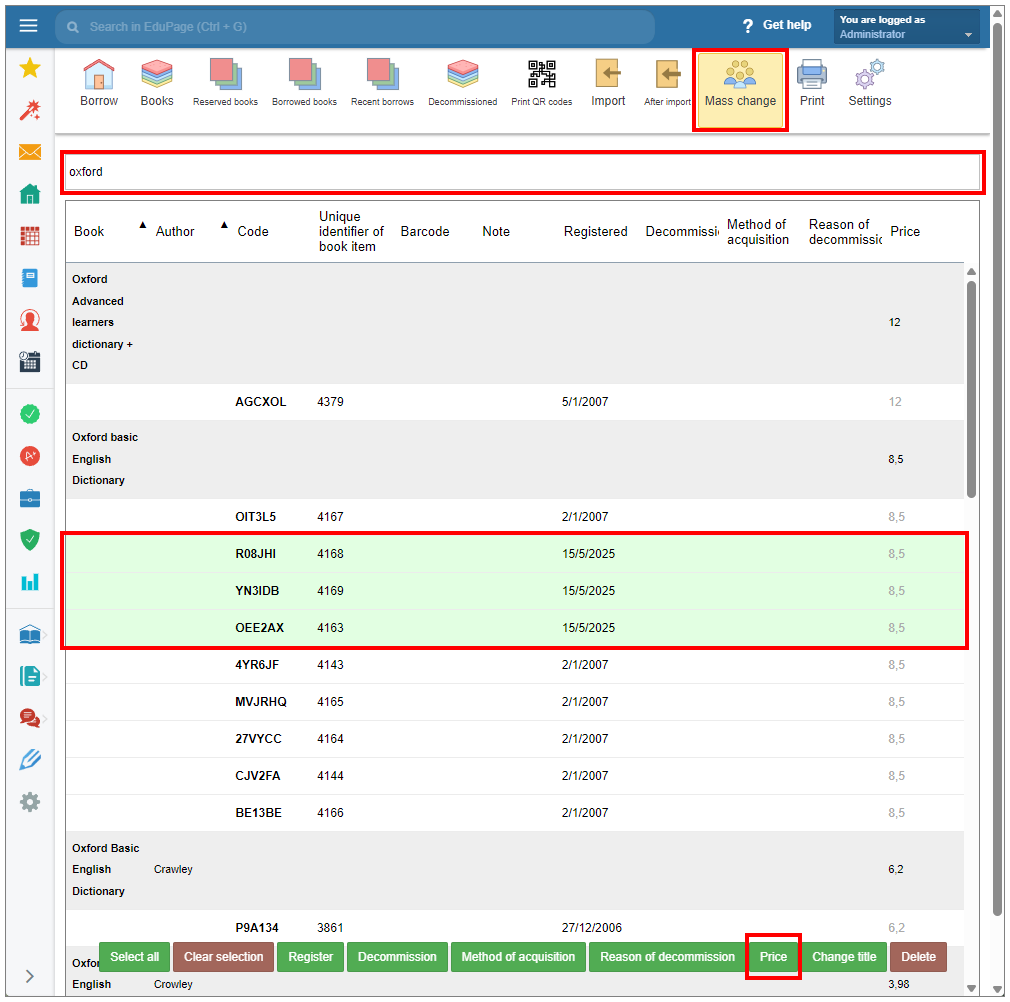
The price of the book title is displayed on the right side of the gray filled row of the book title. By default, the price of all items refers to the title price and is shown in gray.
You can change the price of an item if necessary. Select the desired items and select Price in the lower part of the display.
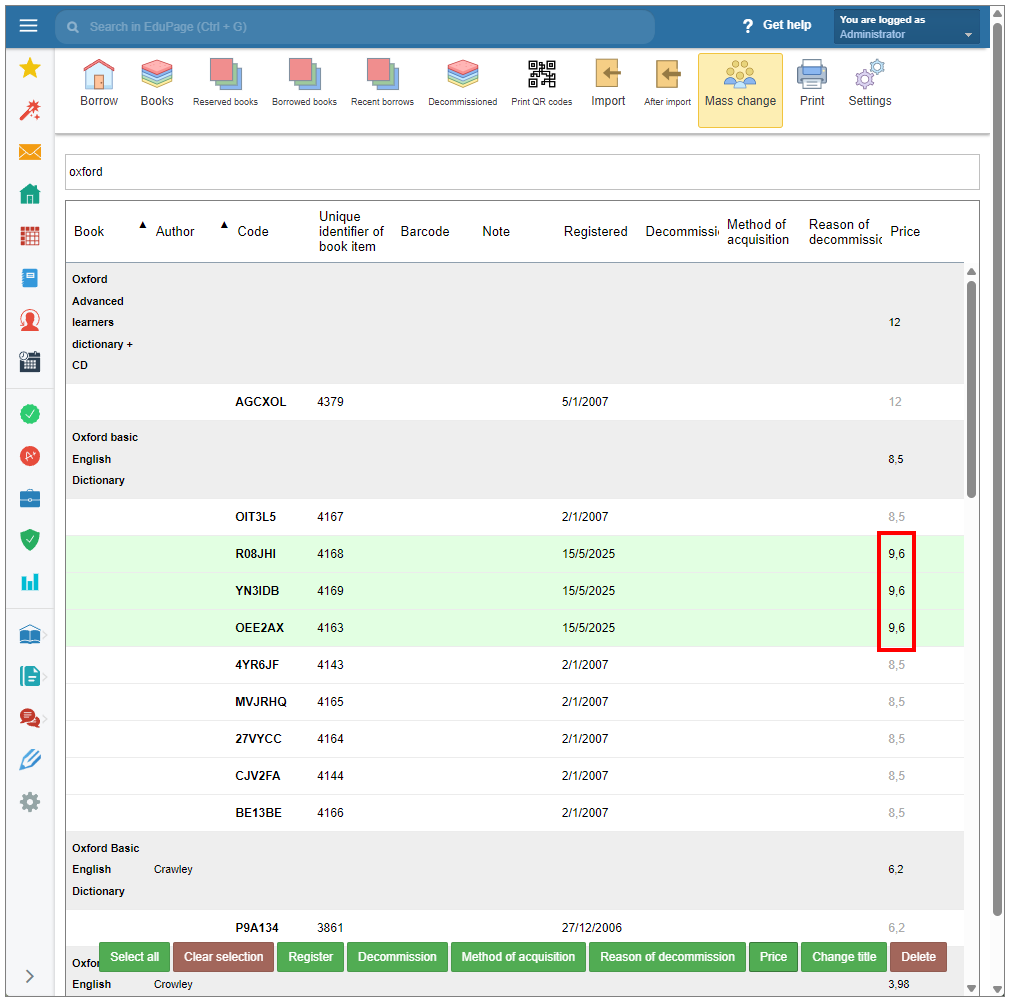
Once edited, an item's price is no longer linked to the book title's price, and its color changes to black.
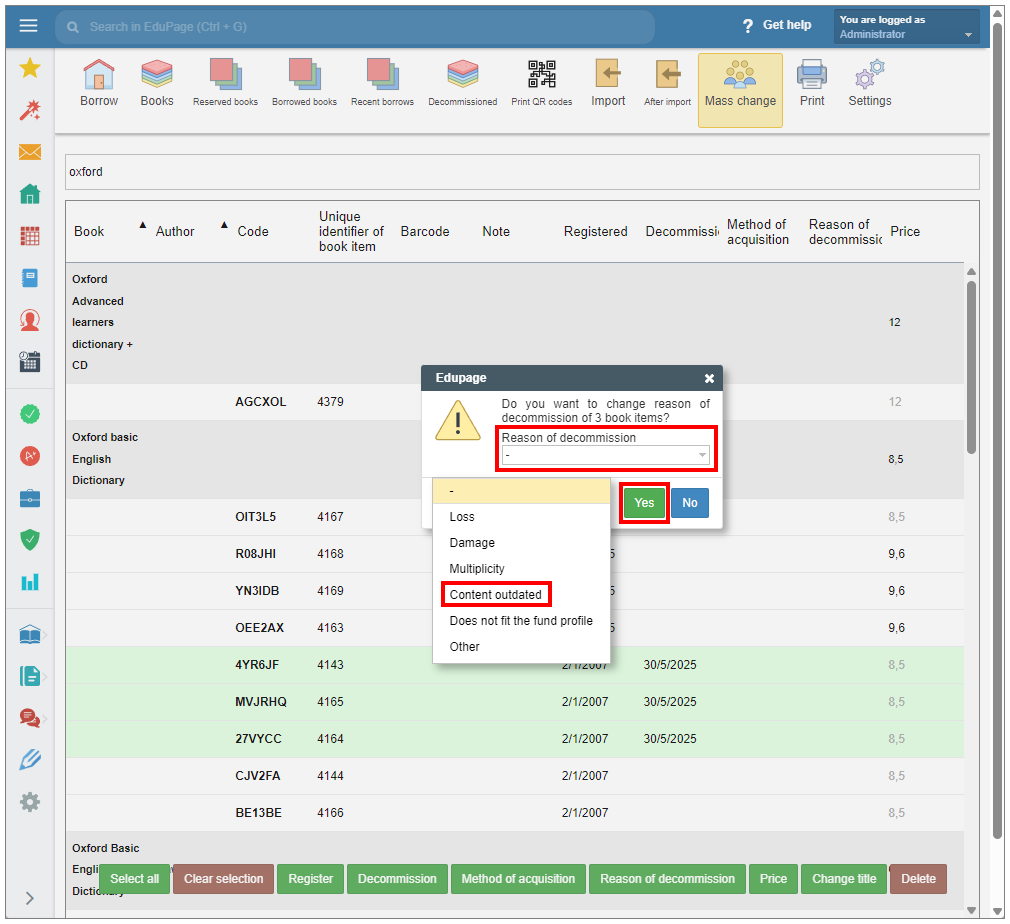
To enter or modify the Reason for decommission of the items, select either individual items or all items under specific title by selecting the title row. Select “Reason of decommission” in the menu at the bottom of the display.
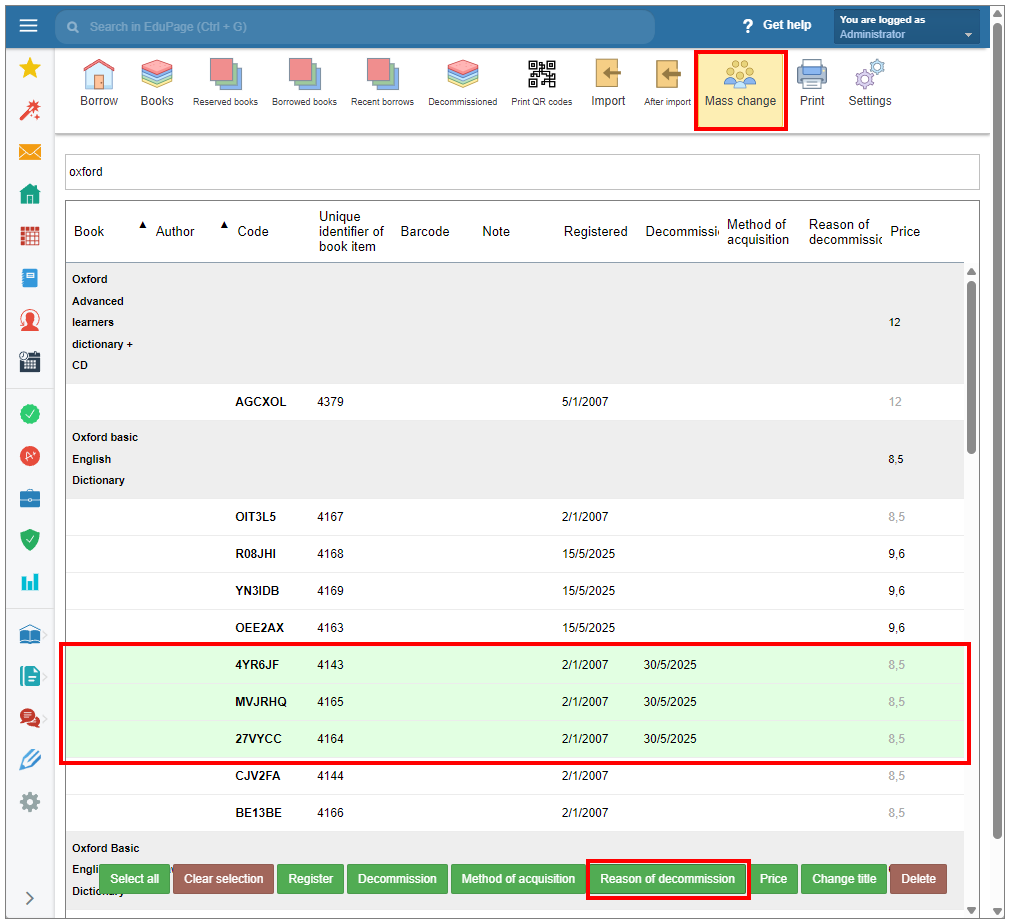
Choose the appropriate reason from the drop-down menu and confirm.
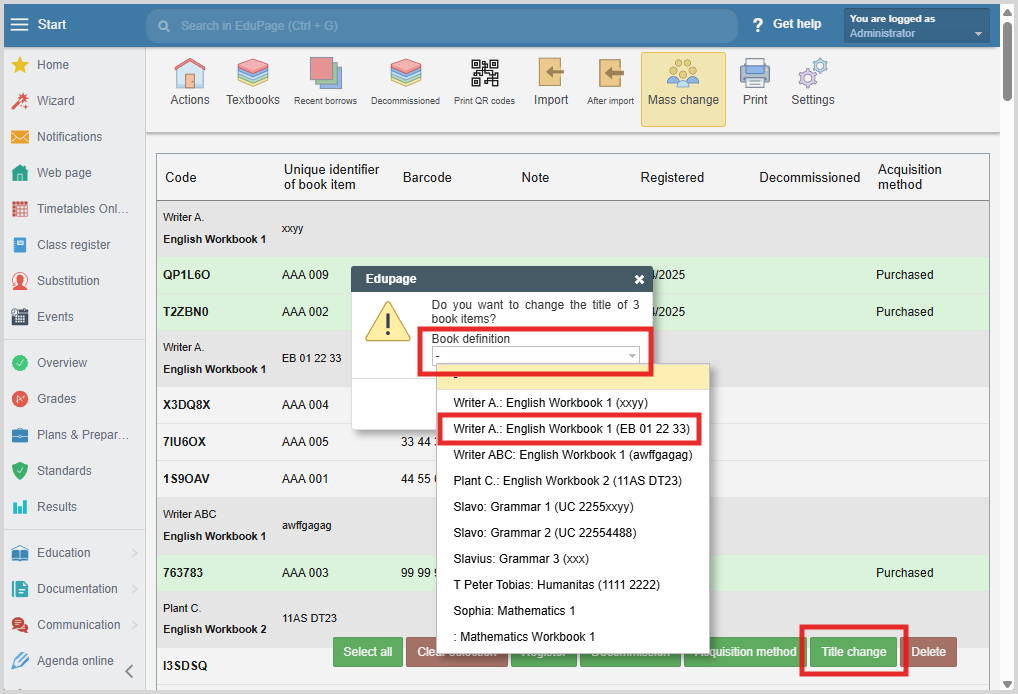
If your database contains incorrectly sorted items under the wrong titles, incorrect ISBN entries, or multiple definitions of the same book (title), you can use the "Title change" operation. This function changes the title assigned to an item while preserving the item’s unique attributes (such as barcode, QR code, acquisition date).
Select the items for which you want to change the title. Click "Title Change".
Press the "Book definition" field to open the dropdown menu and choose the correct title. Confirm the operation.
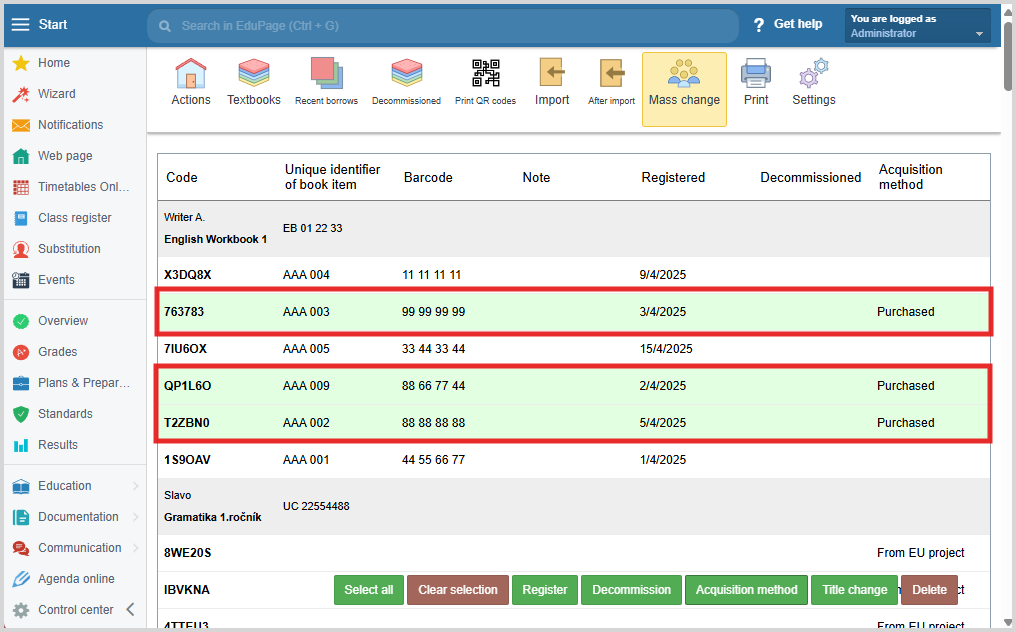
Changed items will be displayed under the new title. The unique properties of the items remain unchanged.
You can also delete a book item using the Mass change feature.
Once the copies have been moved, empty book title records may remain.
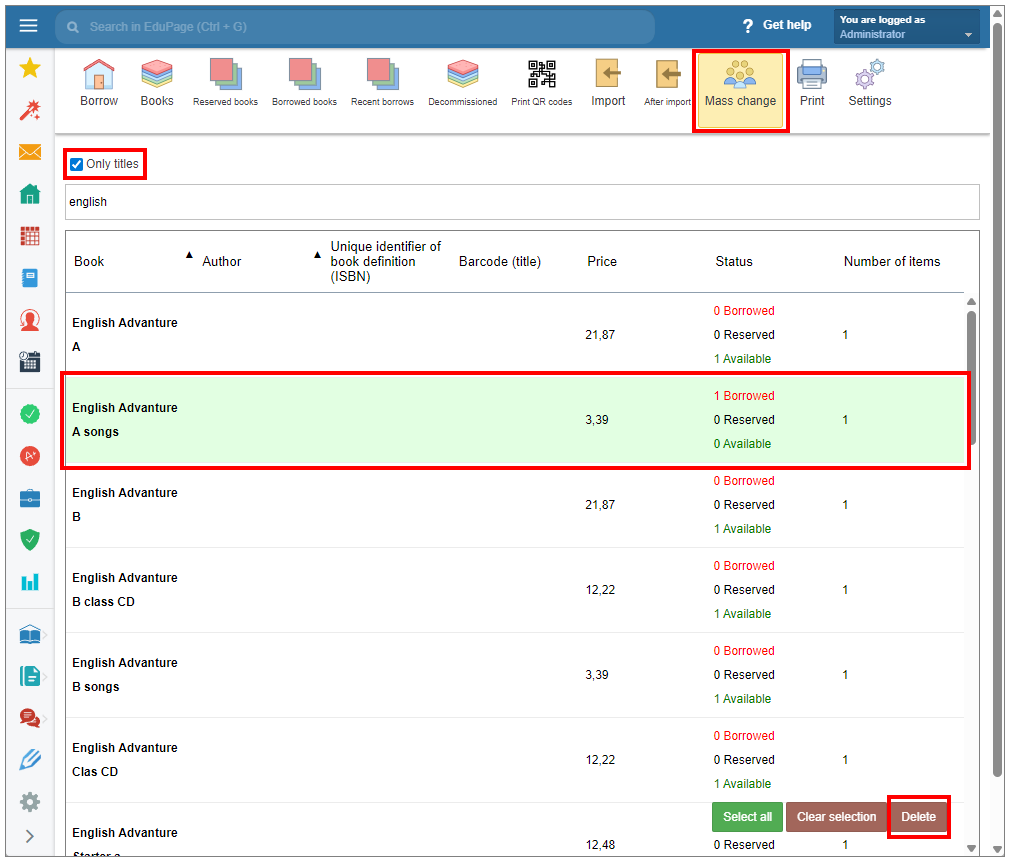
Title records can be deleted via "Mass Changes" by enabling the “Only Titles” checkbox located above the title search field. From the list of displayed titles, select the title(s) you wish to delete.
Click the Delete tab in the bottom-right corner.
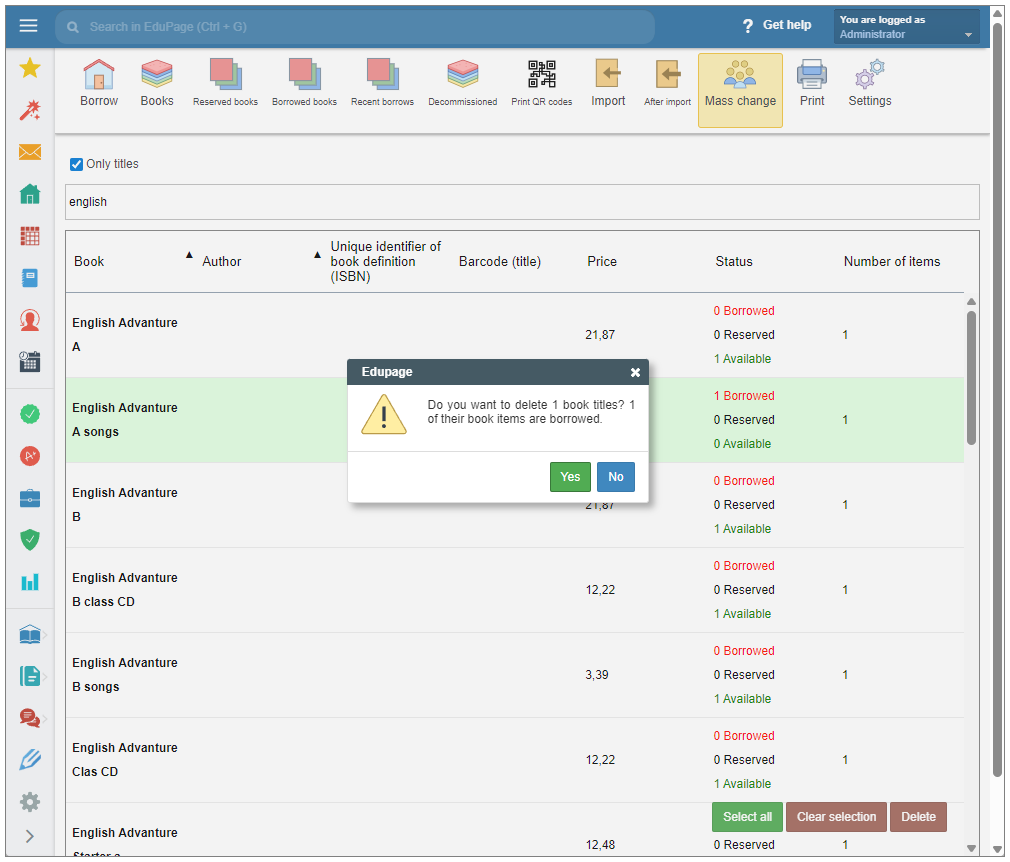
If any of the selected items are currently borrowed, a warning window will appear. You will then have the option to confirm or cancel the operation.
Please note: The Delete operation will permanently remove the book from the database without marking it as Decommissioned first.
See more:
How to add a new book title to the Library/Textbook storage module