 Deutsch
  España
  Francais
  Polish
  Russian
  Greek
Greek  Lithuania
  Romanian
  Arabic
  Português
  Indonesian
  Croatian
  Serbia
  Farsi
Farsi  Hebrew
  Mongolian
  Bulgarian
  Georgia
  Azerbaijani
  Thai
Thai  Turkish
  Magyar
 For what period is the class classification report generated?


EduPage uses the following semester date settings:
1. Electronic Gradebook Date Settings: How to set the date of classification?
This date determines:
- on this date, the default semester in the gradebook switches to the next semester for teachers/students/parents at your school
- the class classification report is generated according to this date, f.i., student attendance for the 1st semester is counted up to this date
2. Class Book Date Settings: How to set the date for calculating the attendance of students in a term
In the class book, you set the date from which student attendance for the 2nd semester is counted.
The class classification report is generated based on the gradebook date settings. Attendance on report cards is generated based on the date settings in the class book. If you have different dates set in Gradebook and Class Book, the number of excused/unexcused absences in the classification report will not match the numbers on the report card.
To generate the same number of hours on both the report card and the class classification report, you must set the same semester dates. You can do this by selecting the option "Use date settings from Class Book (student attendance)” in the gradebook settings.
The semester dates in Gradebook will then automatically match the attendance date settings from Class Book.
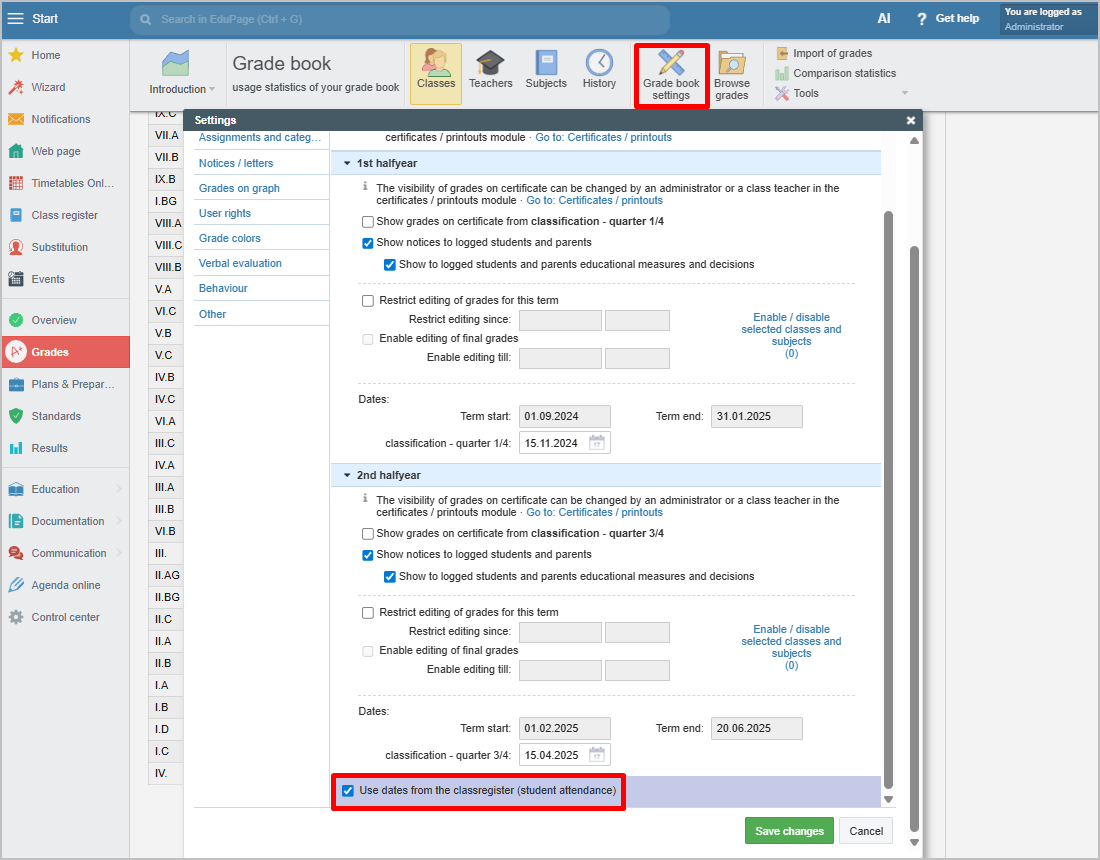
If you check this option, you must recalculate the classification reports so that absences are counted up to the date specified in Class Book.