 Deutsch
  España
  Francais
  Polish
  Russian
  Greek
Greek  Lithuania
  Romanian
  Arabic
  Português
  Indonesian
  Croatian
  Serbia
  Farsi
Farsi  Hebrew
  Mongolian
  Bulgarian
  Georgia
  Azerbaijani
  Thai
Thai  Turkish
  Magyar
 How to Generate a Classification Report and an Overview of a Class’s Academic Performance, Attendance, and Behaviour


In the Classification Meetings and statistics module, you will find all materials needed for the classification meeting for each class. Directly on the EduPage screen, you can view all necessary information — grades, attendance, academic performance, and disciplinary measures.
This module can therefore be used directly during the classification meeting. Additionally, if needed, you can easily enter data directly into EduPage. There is no need to print or export the data manually.
After pressing the Generate button, a PDF is automatically created for the selected class. It is also saved in EduPage under the corresponding class/programme/organizational unit. This ensures the document is stored in the correct place, archived, and available at any time in the future.
Of course, if you wish, you can print these PDFs at any time.
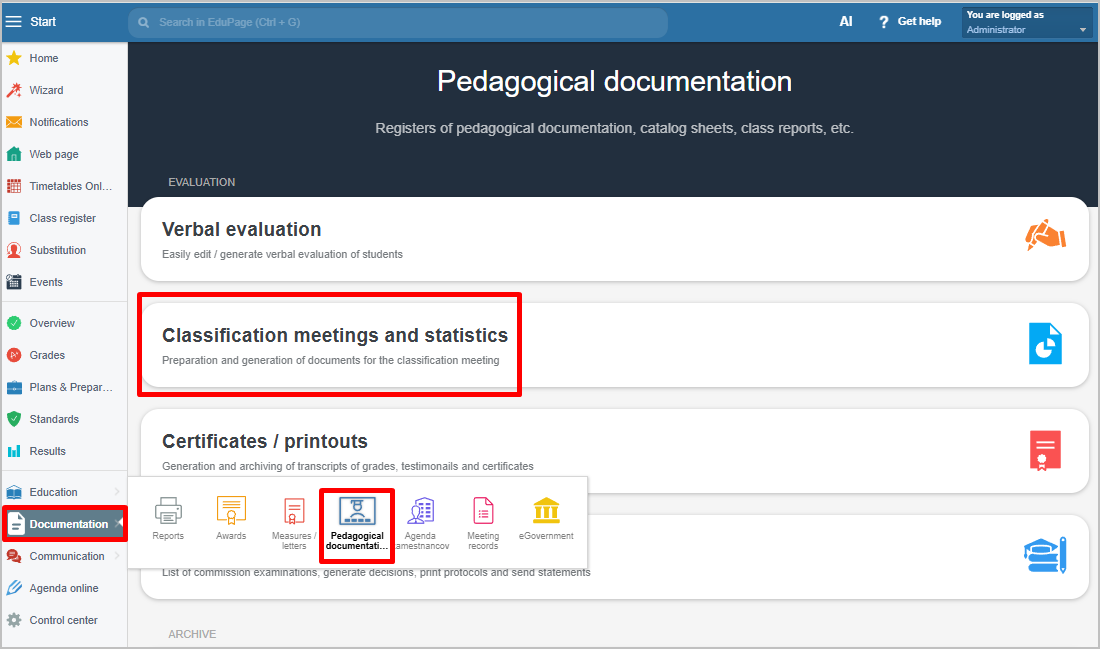
Select Documentation – Pedagogical Documentation – Classification meetings and statistics:
Select Recalculate – EduPage recalculates grades and attendance based on the current data:
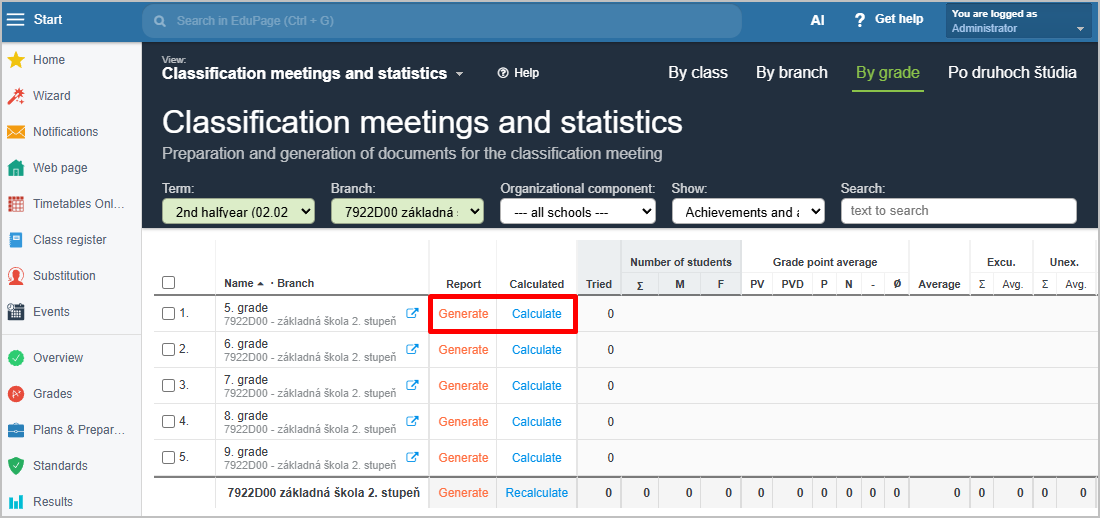
Here you can generate a PDF classification report for the class for the selected period. You can save the PDF with the classification report. School management can see both the data and the generated PDF. It is not necessary to print these reports for the school management.
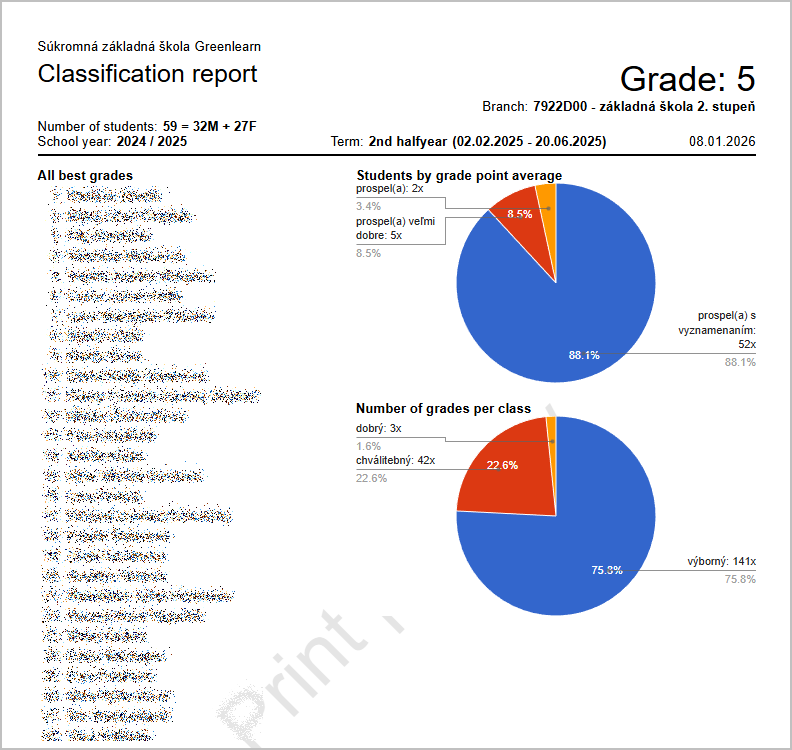
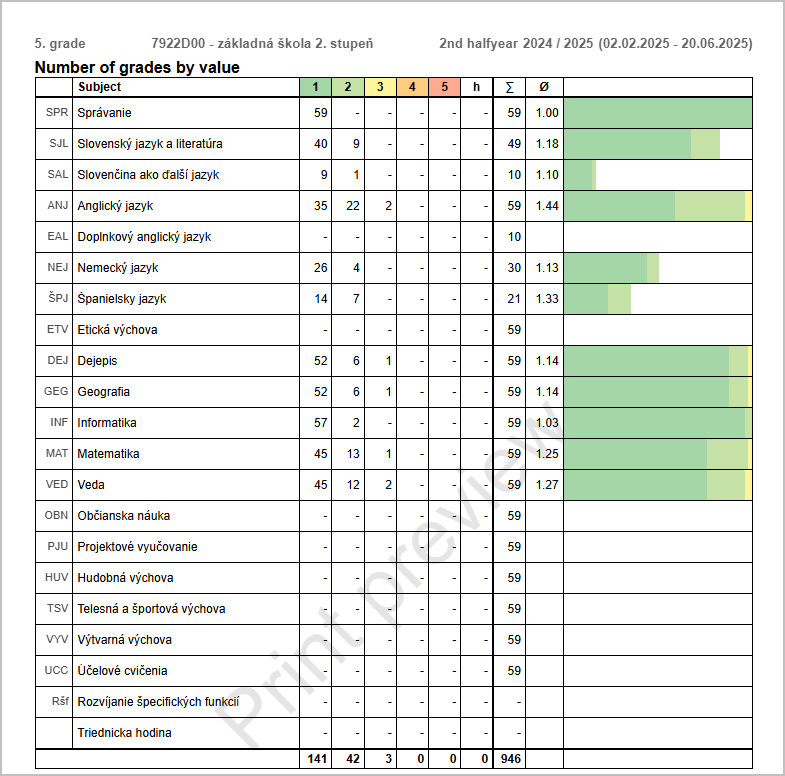
The classification report also includes an overview of grades, attendance, and academic performance.
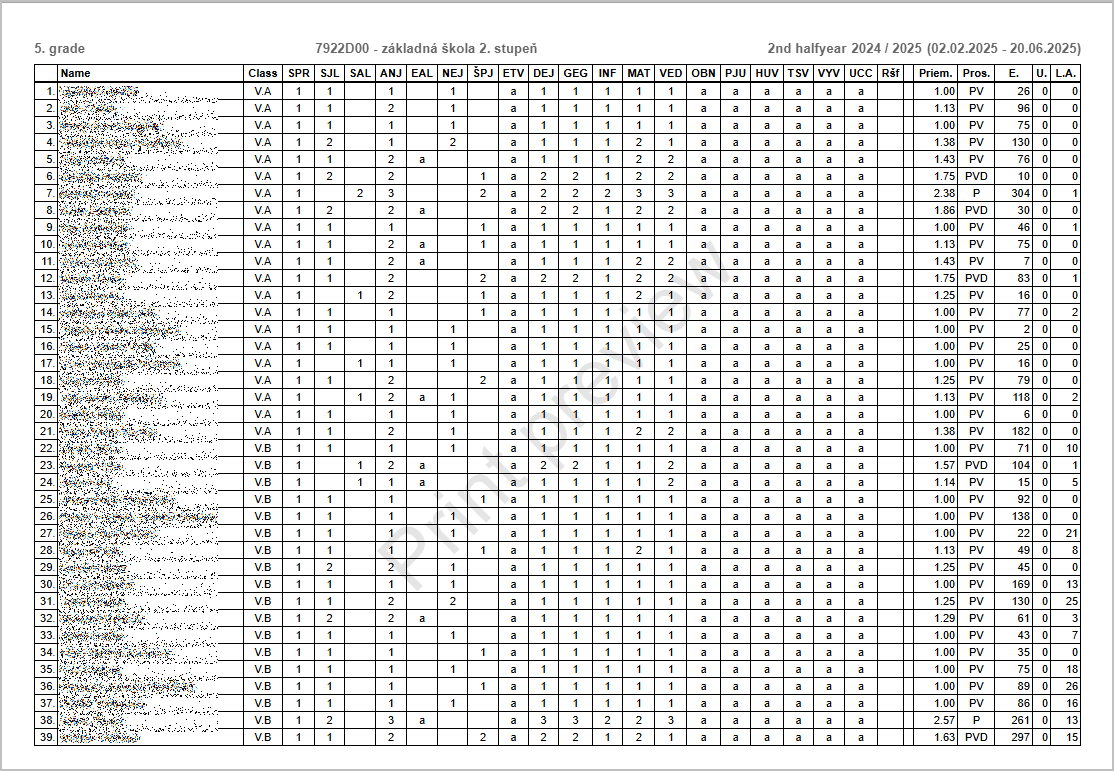
On the last page of the generated classification report, you will find a grade distribution overview.
Notes:
Generating the PDF also recalculates the data.
See also:
How to Print the Classification Report
=I am new. Please edit me.
How to enter and print a verbal evaluation on a certificate