 Deutsch
  España
  Francais
  Polish
  Russian
  Čeština
  Greek
Greek  Romanian
  Arabic
  Português
  Indonesian
  Croatian
  Serbia
  Farsi
Farsi  Hebrew
  Mongolian
  Bulgarian
  Georgia
  Azerbaijani
  Thai
Thai  Turkish
  Magyar
 How to enter a student's transfer to another class during the school year?


When a student transfers to another class during the school year, it is necessary to record this change.
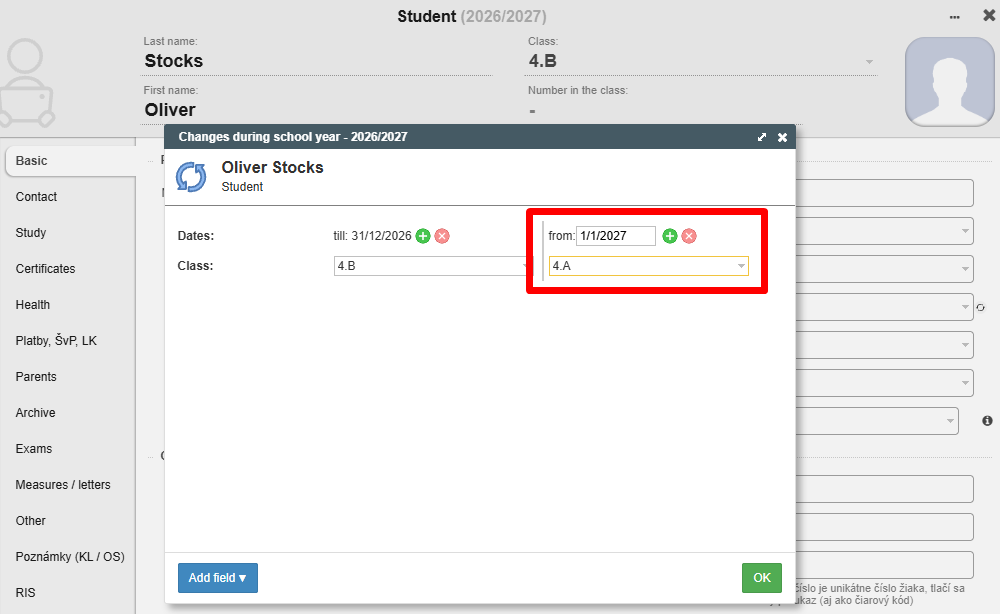
In our example, student Oliver Stocks is transferring from class 4.B to class 4.A.
On the student's card, click on the icon next to the class. The icon will appear when you hover your mouse over the class name shelf.
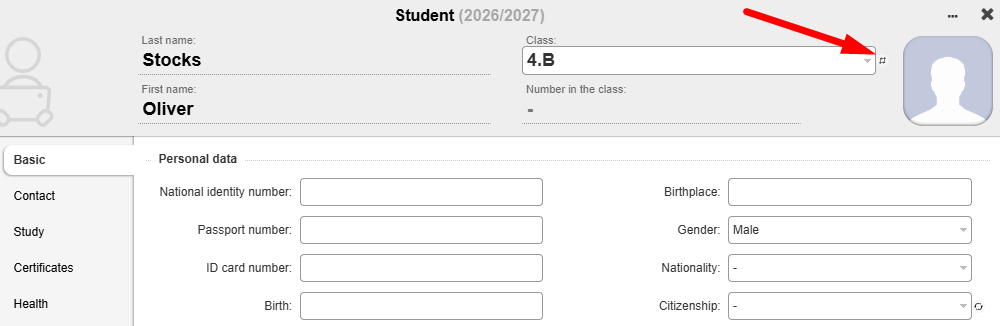
Add a new change.
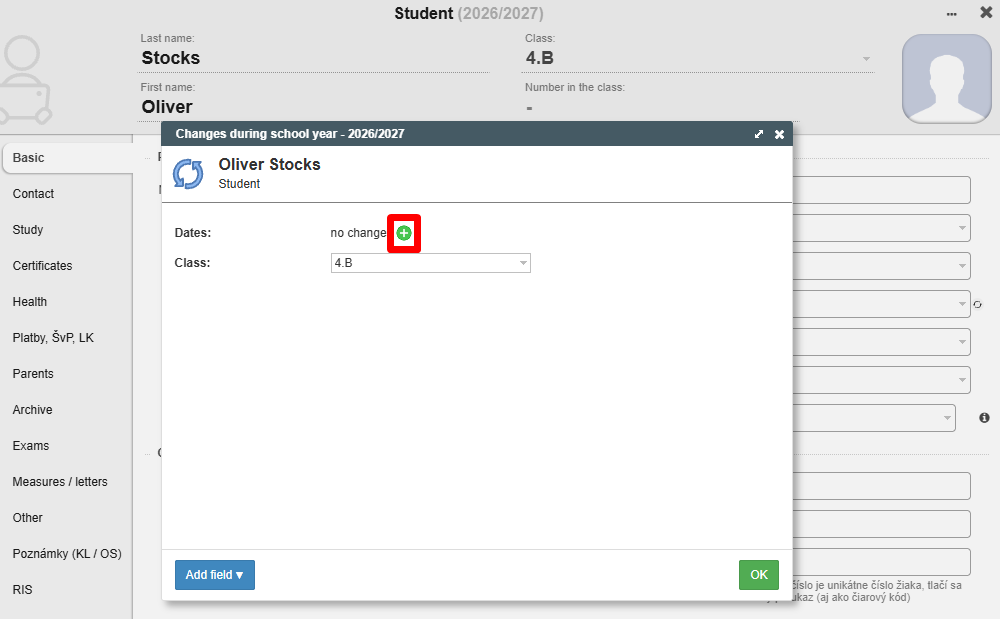
Enter the date from which the student is changing classes and save the changes.
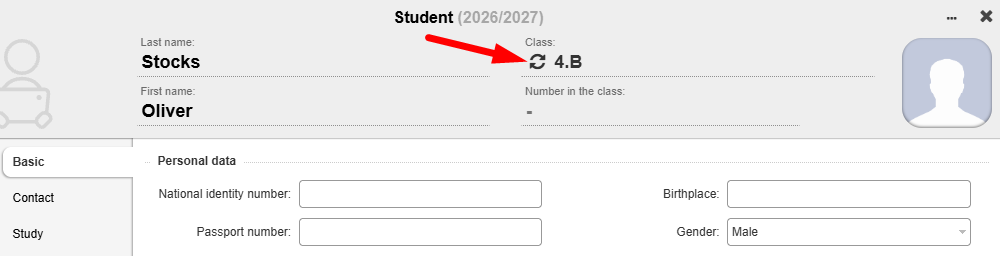
The icon indicates a change during the school year.
The change must also be recorded in the course/lesson settings.
For lessons in both 4.A and 4.B that are with the entire class, no changes are needed if the option "Select all students from selected classes" is checked in the student selection.
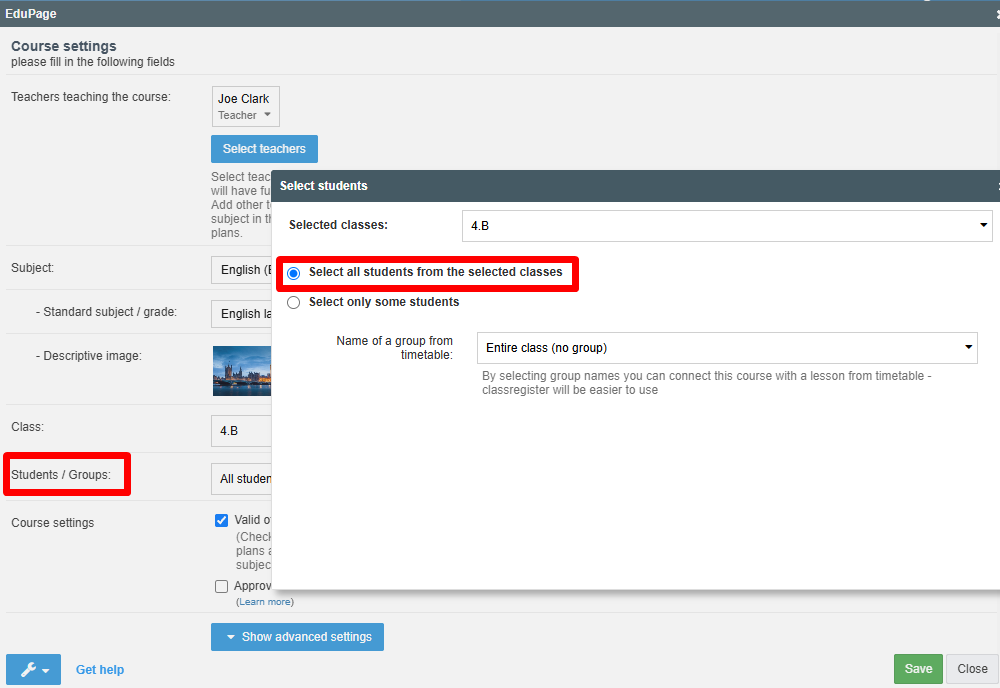
For divided lessons where students are selected individually, it is necessary to record the change during the school year—specifically in both groups: the original one in 4.B and the new group in 4.A.
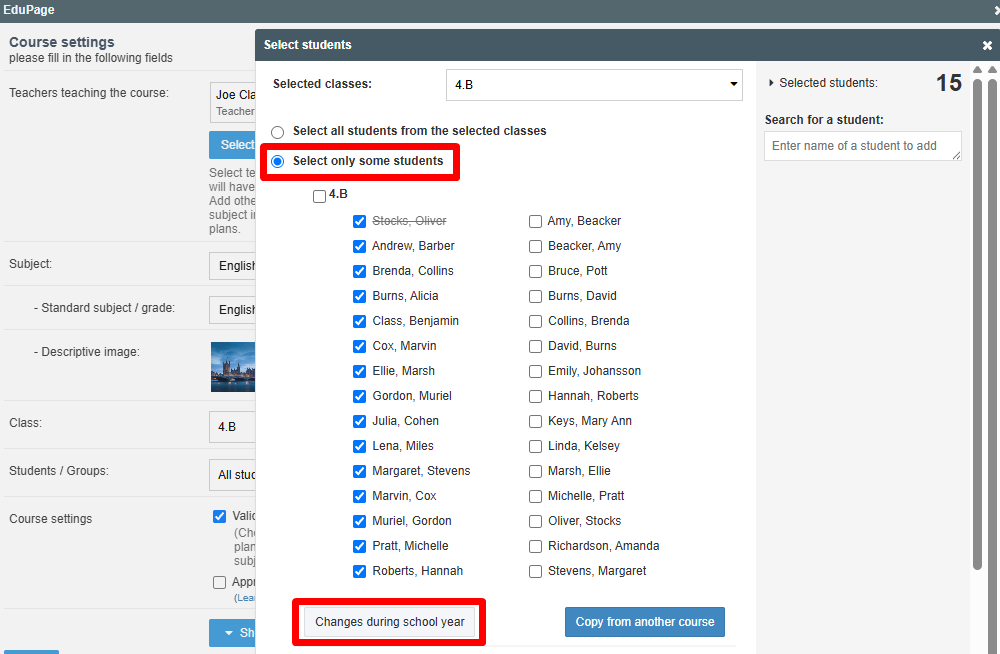
Select Add change.
{Picture u7199_017 NORESIZE SKIN1 SKIN1}
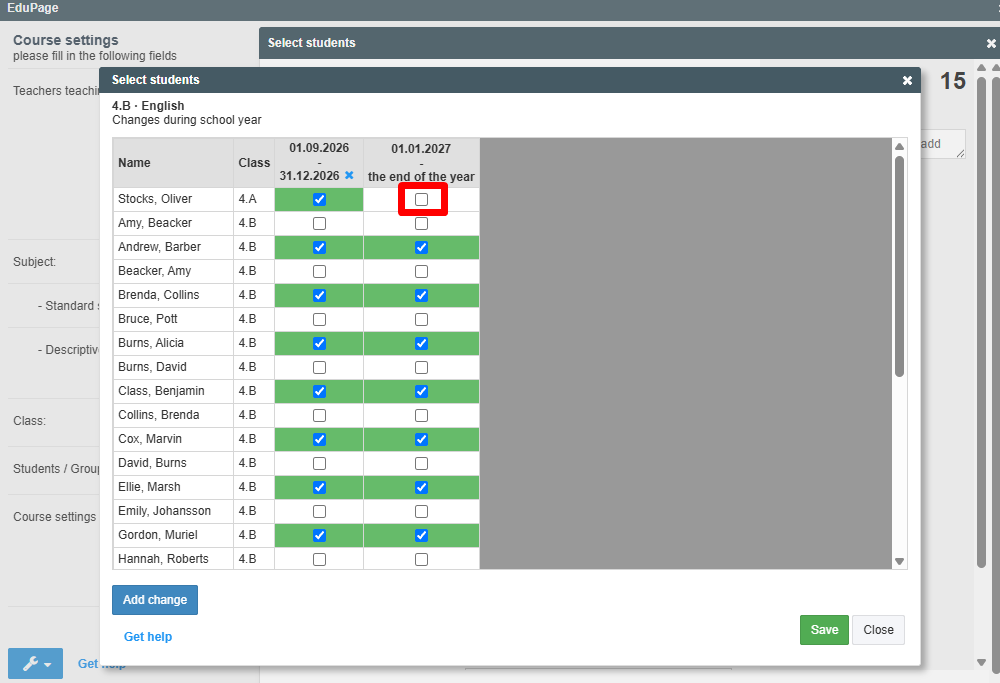
The change must be recorded in the same way for the new group in 4.A as well.
This change needs to be noted in all divided lessons.